Thin Feature
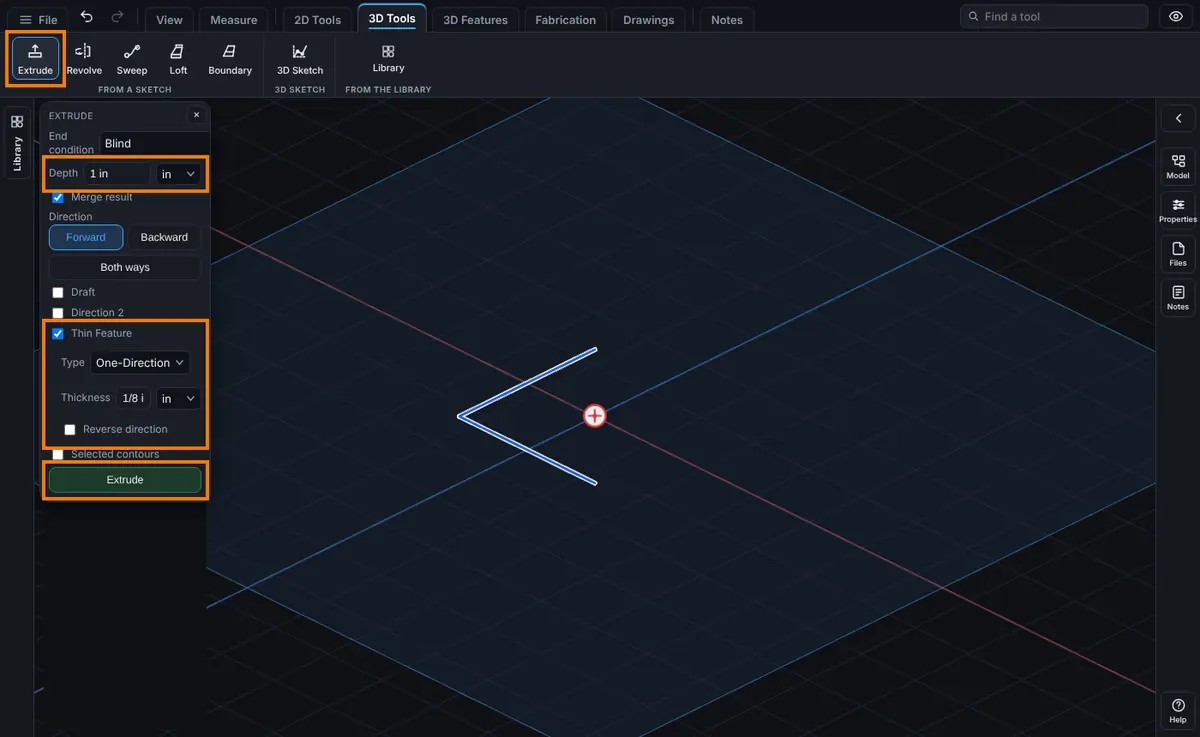
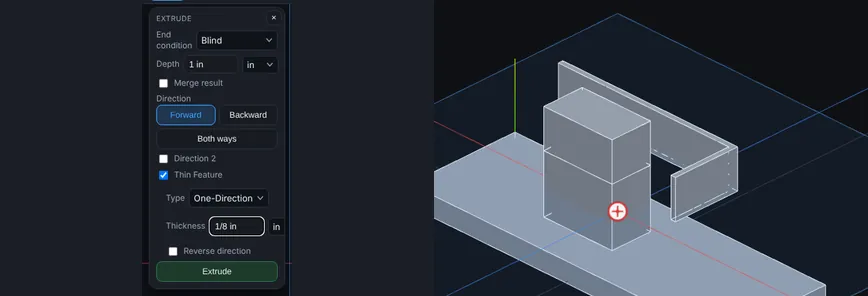
An option for Extrude and Cut. It makes a wall of a set thickness from a profile, instead of a solid. The profile can be a closed shape, or an open chain of lines and arcs. A line drawn across the sketch becomes a wall. For a guided example with pictures, see the Thin Feature Walkthrough.
What you get: a wall of the thickness you type, built along your profile to the depth you set, as one step in the Model tree.
When to Use It
- Make a bracket, a flange or a rib from a single drawn line
- Make a tube or a channel wall from a circle or a rectangle
- Draw the shape of a wall as a line, then type the thickness later
- Cut a groove or a slot of fixed width along a path
How It Works
The thickness is added to the profile in the sketch plane. The wall is then extruded or cut to the depth you set, the same as any other profile.
- For a closed profile, the wall is a ring. By default the wall grows inward from the outline. Reverse direction grows it outward.
- For an open chain, the wall is a band along the chain, with flat ends.
- Where two lines meet, the outside corner is sharp. The wall does not round the corner off. Where a line meets an arc, the corner is sharp too. Where two pieces meet smoothly, the wall stays smooth.
- Arcs stay arcs. A wall along an arc is a ring section with the same centre and a bigger or smaller radius.
Step by Step
- Open a sketch on a plane or a face. Draw a line, a chain of lines and arcs, or a closed shape (see Planes and Faces). Sketching is part of modeling, which comes with the Pro plans.
- Click Extrude (or Cut) on the Features tab.
- Set the Depth (for example
1 in) and the Direction. - Tick Thin Feature. A Type box and a thickness box appear.
- Choose the Type: One-Direction, Mid-Plane or Two-Direction.
- Type the thickness, for example
1/8 in. For Two-Direction, type a thickness for each side. - Tick Reverse direction to put the wall on the other side of the line.
- Click Extrude (or Cut). The wall is built.
- The Model tree names the step for what it did, for example Extrude open line, 2 lines, 1 in, thin 1/8 in.
Options
- Thin Feature (tick box): turns the wall on.
- Type:
- One-Direction: the whole thickness on one side of the profile. For an open line, the first side is to the left of the way you drew it. For a closed shape it is inward.
- Mid-Plane: half the thickness on each side of the profile.
- Two-Direction: a thickness for each side, Thickness 1 and Thickness 2.
- Thickness: takes units and formulas, like the Depth box. In inches it shows fractions down to 1/64 in.
- Reverse direction (One-Direction): puts the wall on the other side.
Cap ends is not offered. The ends of an open wall are always flat.
Edit It Later
Right-click the step in the Model tree and choose Edit Feature. The Thin Feature tick box, Type, thicknesses and Reverse direction are there. Press Esc or the X to close without changing anything.
Tips and What to Expect
- Thin Feature and Flip side to cut cannot be used together. Ticking one unticks the other.
- Thin Feature works with Direction 2 and with Up To Next and Up To Surface.
- An older version of the viewer (6.333.0 or earlier) builds a plain solid from a closed profile, and refuses an open line. The file is not damaged, and opening it again here brings the wall back.
Common Mistakes and Messages
- "The lines and arcs do not close into an outline yet. Join the ends (snap to points) so every corner meets exactly two pieces." You pressed Extrude on an open line with Thin Feature unticked. Tick Thin Feature and type a thickness, or join the line into a closed outline.
- "Thin Feature works on one outline at a time. Use a profile with no holes." The profile has a hole inside it, such as a circle inside a rectangle. Remove the inner outline, or make the wall from each outline in its own step.
- "The wall is thicker than the circle. Use a thinner wall." The thickness grows inward past the middle of the shape. Type a thinner wall, or tick Reverse direction so the wall grows outward. Nothing is added.
- "Type a wall thickness more than 0 for Thin Feature." The thickness box is empty or 0. Type a thickness such as
1/8 in. - The wall is on the wrong side of the line. For an open line, One-Direction puts the wall to the left of the way you drew it. Tick Reverse direction, or choose Mid-Plane to center it on the line.