Measure Gap
Gap measures the distance between two surfaces, like the thickness of a plate or the space between two walls. The button is named Gap on the Measure tab. It does not change the model.
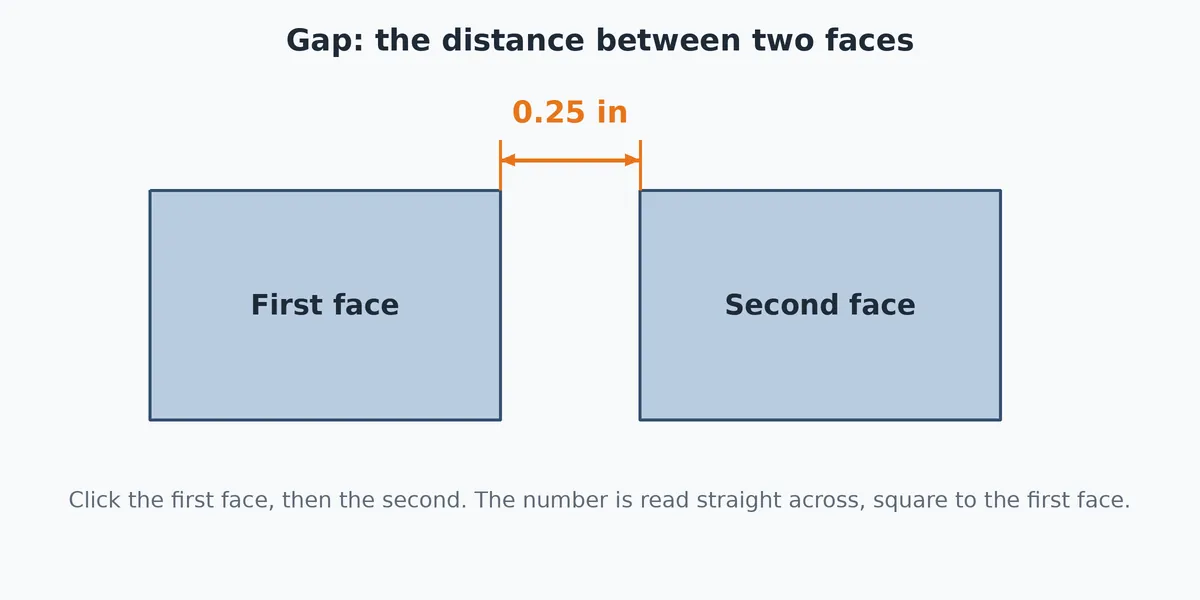
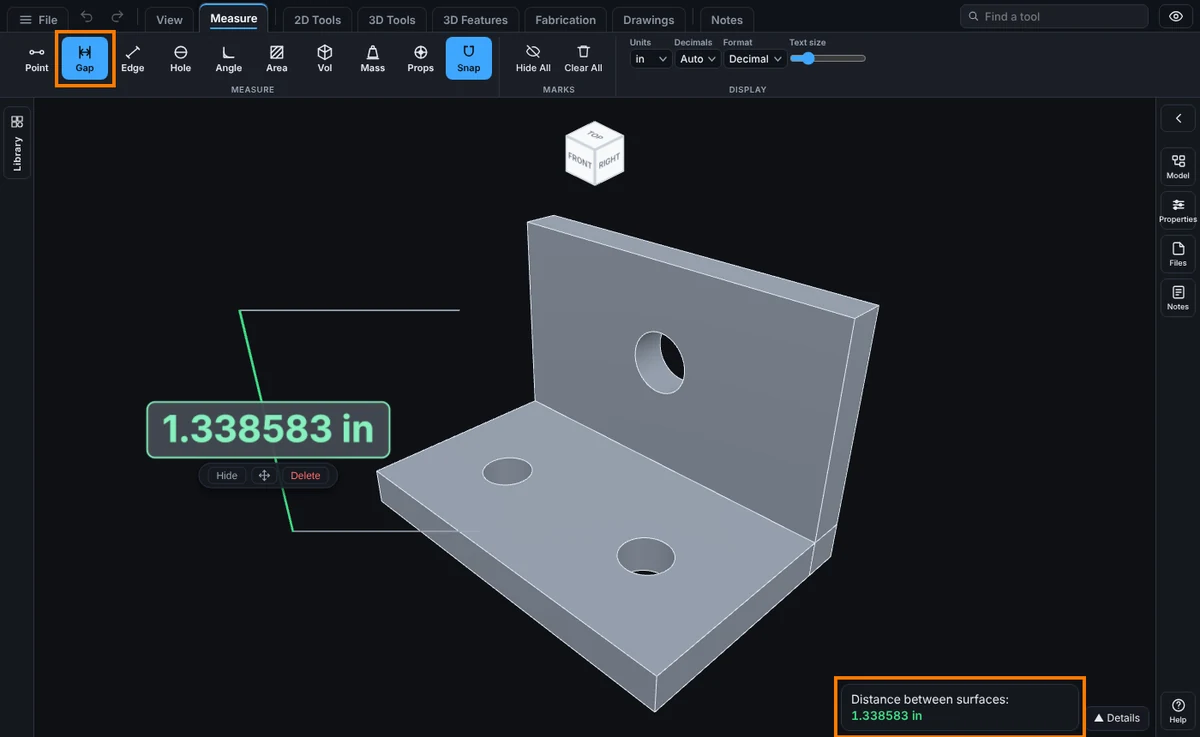
What you get: a dimension with two witness lines beside the part, the gap written on it, and the same number in the readout as Distance between surfaces.
Step by Step
- Click the Measure tab, then Gap. The readout says "Tap one surface, then another. Gives the gap between them."
- Click the first face. It lights up blue.
- Click the second face. It lights up green.
- A dimension is drawn to the side of the part, with two thin witness lines from the faces, and the distance is written on it. The readout says Distance between surfaces.
After You Measure
- To move the dimension out of the way, drag the small move handle on its pill. The measured length stays the same. See Kept Measurements.
How the Number Is Worked Out
- The gap is read straight across, at a right angle to the first face you picked. For two parallel faces that is the true gap, such as a 0.25 in plate reading 0.25 in.
- If the two faces are not parallel, the number depends on where you click the second face, because it is measured along the first face's direction. For faces that are tilted to each other, use Measure Angle too.
Options and Variations
- Flat drawings (DXF): click one line, then another line. The gap is the distance from the second line to the first, across the first line's direction. The lines must be clicked right on them ("Tap right on a line.").
- Inside a sketch: each pick can be a sketch line, a construction line, a sketch circle or arc, a hole rim, or an edge of the solid under the sketch. The result is the true shortest distance between the two picks, drawn at the closest spot. If the two touch, it says "They touch; the gap is zero."
- Moving sketch lines by a number: when one of the two picks is a sketch line you can still move, the pill shows Edit. Type a new distance and the sketch geometry moves to sit exactly that far away.
Common Mistakes and Messages
- The readout says "Tap right on a sketch line or a part edge." In a sketch, Gap needs a click on a line or edge, not on open space.
- The number is not what I expected on a slanted face. Pick two parallel faces, or see How the Number Is Worked Out above.
- I only want a spot to spot distance. Use Measure Point.
- I picked an edge, not a face. On a solid, Gap reads faces. Click in the middle of each face, away from its edges.
- The faces did not light up. The click missed the model. Zoom in and click on the face itself.