Equations
An equation makes one dimension follow others. Type a formula such as D1@Sketch1 / 2 into a dimension's box, and that dimension is worked out from the rest of the sketch. Change the first dimension and the one that follows it changes too, through the same sketch solver that holds every other dimension. Every dimension also has a name you can see and change, and the name is how a formula refers to it. For a guided example with pictures, see the Equations Walkthrough.
When to Use It
- Keep a slot half as wide as the plate it is cut in
- Make a hole's diameter always a quarter of a bracket's width
- Set one edge 1 in shorter than another, whatever the other one becomes
- Work out a diagonal from two sides, so it stays right when either side changes
- Change one size and let the rest of the sketch follow
Step by Step
- Open a sketch and draw two lines (see Line, Circle, Rectangle, Arc, and Construction).
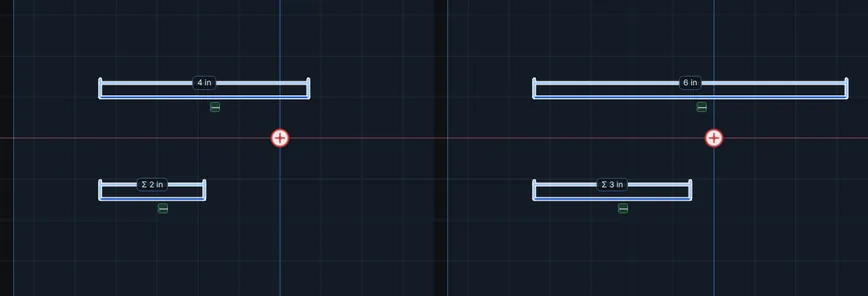
- On the Sketch tab, click Dimension, click the first line, type
4 inand press Enter. The dimension is namedD1@Sketch1. - Click Dimension, click the second line, and type
D1@Sketch1 / 2in the box. Anything that is not a plain number is read as a formula. - Press Enter. The second line becomes 2 in long. Its number on the sketch starts with Σ (the sigma sign) to show that a formula drives it.
- Click the first number, type
6 inand press Enter. The second line follows and becomes 3 in. - Press Ctrl+Z once. Both lines go back together. Ctrl+Y puts both back.
Names
Every dimension has a name. Click a number on the sketch and the name is in the box. Hover over a number and its name shows too. The names start as D1@Sketch1, D2@Sketch1 and so on: the number counts the dimensions in the order you made them, and the part after the @ is the sketch's name.
To rename one, click its number, type the new name in the name box and press Enter. Every formula that used the old name is changed to use the new one.
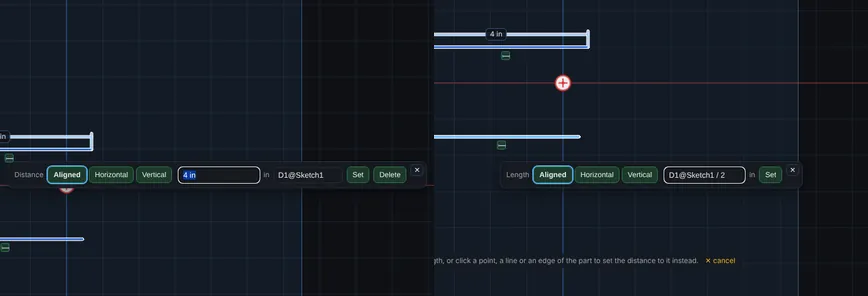
A name uses letters, digits and the underscore, starts with a letter, and may have one @ in it. Width, Slot_Depth and D1@Sketch1 are fine. Slot Depth (a space) is not. Capitals do not matter, so width and Width are the same name. A name can be up to 40 characters. It cannot be another dimension's name, or a word a formula already uses, such as in, mm, sin or pi.
What a Formula Can Hold
- Numbers:
3,0.25,.5 - Units:
2 in,10 mm,1 ft,2.5 cm,0.5 m, and the signs2"and1'. A number with no unit is in your display unit. - Plus, minus, times and divide (
+ - * /), with the usual order, and brackets. Times and divide go before plus and minus, so2 + 3 * 4is 14, and(2 + 3) * 4is 20. - A minus sign in front of a number, a name or a bracket:
-D1@Sketch1 + 5 in - Other dimensions by name:
D1@Sketch1 * 2 - sin, cos and tan: the angle is in degrees, so
sin(30)is 0.5 - sqrt and abs, and pi
Some examples:
D1@Sketch1 / 2: half of D1D1@Sketch1 - 1 in: 1 in less than D13/8 in + D2@Sketch1: three eighths of an inch more than D2. A unit goes with the whole fraction, so3/8 inis three eighths of an inch.sqrt(D1@Sketch1 * D1@Sketch1 + D2@Sketch1 * D2@Sketch1): the diagonal of a rectangle D1 by D2D1@Sketch1 / 1 in * 15: for an angle, 15 degrees for every inch of D1sin(30) * 4 in: 2 in
A length dimension's formula has to give a length, and an angle dimension's has to give a plain number of degrees. A bare number added to a length is in your display unit, so D1@Sketch1 + 1 adds 1 in when you work in inches. To turn a length into a plain number, divide it by a length, as in the angle example. Two lengths multiplied make an area, and sqrt of an area is a length. A length cannot be added to an area.
A number you type that is only a number stays a plain number, exactly as before: 3/8, 1 3/8, 1-3/8, 10mm and 45 all work as they always did. Inside a formula, write a mixed fraction as a sum, 1 + 3/8.
The Equations Window
- On the Sketch tab, click Edit, then Equations.... The window lists every equation in the open sketch with its name, its formula and its value now, marked with Σ. Below it, Other dimensions lists each plain dimension.
- To add an equation, pick a dimension in the list under Add an equation, type the formula, and click Add (or press Enter).
- To change one, edit its formula in its row and press Enter.
- To delete one, click the × in its row, or clear the formula and press Enter. The dimension keeps the number it has now and is a plain dimension again.
- To rename a dimension, edit its name in its row and press Enter.
- Click the ✕ at the top to close the window. It also closes when you leave the sketch.
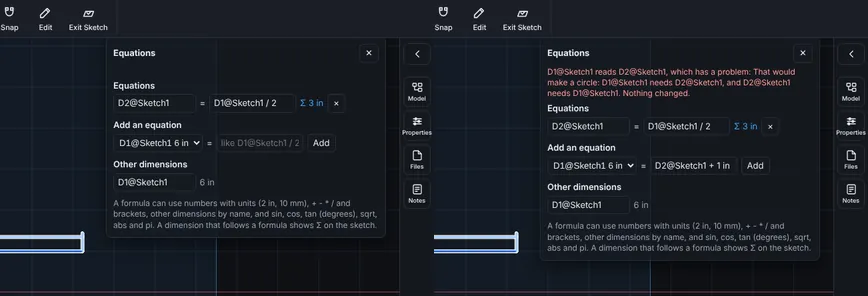
The window steps aside while a dimension's box is open, so it never covers the box.
When a Formula Is Refused
A formula that cannot be used is refused with a plain sentence, and nothing changes. Not the sketch, not the undo history.
- A circle: if D1 needs D2 and D2 needs D1, the message says so by name. A dimension that reads itself is refused too.
- A name that is not there: the message gives the name it could not find.
- A mistake in the formula: a bracket not closed, a sign in the wrong place, two numbers in a row, a divide by zero, a length added to an area. The message says which.
- Anything that is not a formula: formulas are read by a small reader made for them, and the text is never run as a program. Only the things listed above are understood, and everything else is refused.
- A result that cannot hold: if a change would make another formula give a length of zero or less, or an angle of 180 degrees or more, the change is refused and the message names that dimension.
- Deleting a dimension a formula reads: refused, and the message names the equations. Change or delete them first.
Options
- In the dimension box: when you place a dimension or click its number, type a number or a formula. Clicking the number of a driven dimension shows its formula.
- In the Equations window: add, change, delete and rename in one place.
- In the Extrude depth: the depth box takes a formula that uses the open sketch's names, such as
D1@Sketch1 / 4. It is worked out once, when you press Extrude or Cut, and the depth stays a number after that. It does not follow later changes to the sketch. - A plain number over a formula: type a plain number in the box of a driven dimension and its equation ends. The message says so, and Ctrl+Z puts the equation back.
- Part wide values: global variables, each one named value for the whole part, used in any dimension formula. See Global Variables.
- Not in this release: formulas that read dimensions of another sketch or feature.
Tips and What to Expect
- A dimension that follows a formula is still held by the sketch solver like any other. The formulas are worked out in order, each after the ones it reads, and then the solver moves the sketch to match.
- Changing a dimension, adding an equation, changing one, deleting one and renaming are each one Undo step, with everything that followed.
- The formulas are saved with the sketch. Close the model and open it again, or use Edit Sketch from the History, and the names, the formulas and the Σ marks are all back.
- The number is always saved beside the formula. An older version of the viewer opens the model with the plain numbers and does not lose the formulas, but it will not follow them when you change a dimension there. Open it here and change any dimension to bring the followers up to date.
- If a Trim or another edit removes a dimension a formula reads, the equation stays, shown in the window with its problem. The dimension keeps its last number until you fix or delete the formula.
- Names are given when a dimension is made. Renaming the sketch later does not rename its dimensions.
- Under Relations in Edit on the Sketch tab, each dimension is listed with its name, and with its formula when it has one.
- A reference dimension has a name too and is listed read only. A formula cannot read it, because its size comes from the sketch the formula moves. The Extrude depth can read it.