Print and Export a Bill of Materials or Cut List
Saves the bill of materials of an assembly or the cut list of a part as a PDF, or sends it to a spreadsheet as a CSV or an Excel file. The paid plans put your own letterhead at the top of the PDF, and the plans that remove it leave off the small StepFile.com line at the foot.
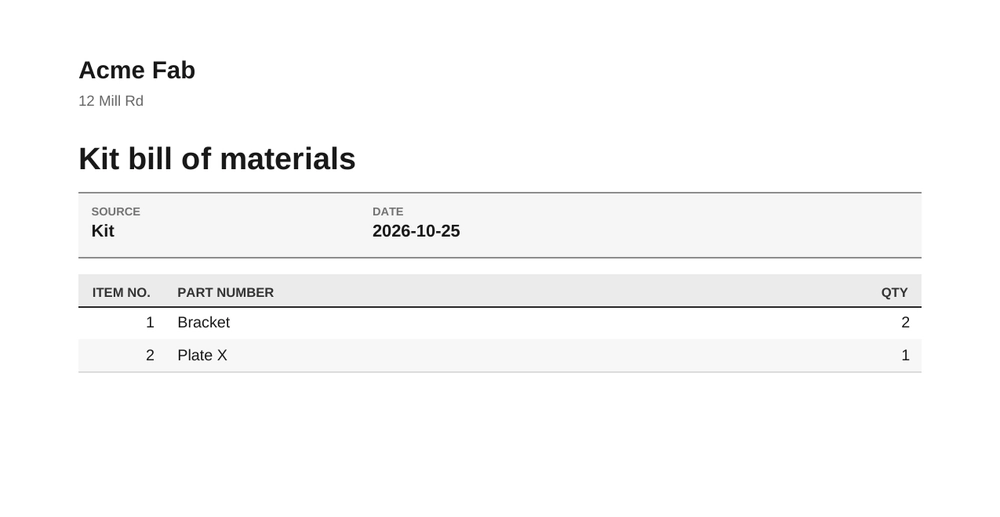
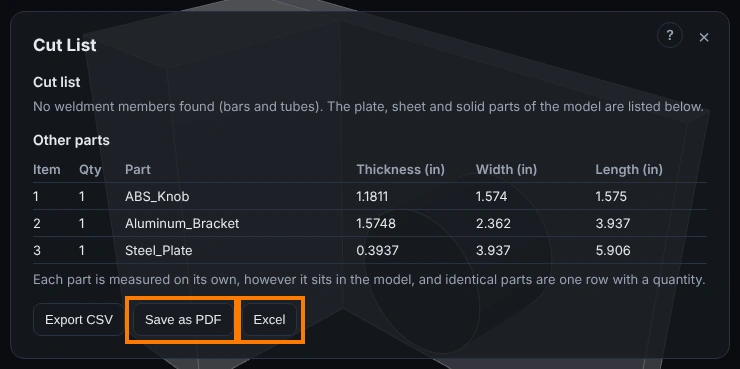
What you get: a PDF with the title, a title block (the model, the date, the revision and, for a cut list, the material, thickness and units), the table exactly as the window shows it, and "Page 1 of 1" at the foot. A cut list shows each part once with its quantity: ten identical panels are one row with a quantity of 10, however they sit in the model. The spreadsheet has the same rows, and quantities and sizes are real numbers in it, so you can add them up.
Step by Step: Save as PDF
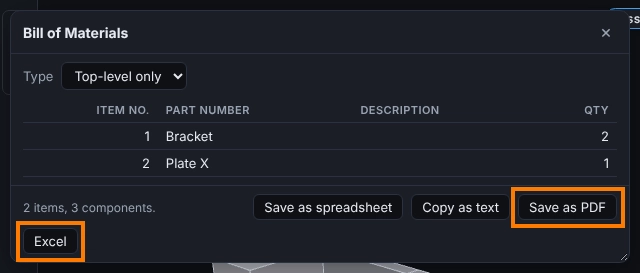
- Open the assembly and click Bill of Materials on the Assembly tab (Evaluate group). For a part, click Cut List on the Fabrication tab (Shop Output group).
- Choose what you want to see first. In the Bill of Materials window pick the Type (Top-level only, Parts only, Indented or Flattened). What the table shows is what the PDF holds.
- Click Save as PDF. The PDF comes down to your downloads and the window says Saved Kit bill of materials.pdf to your downloads.
- Open it from your downloads to print it or to send it by email.
The PDF is made from the table on the screen and is not kept. To make another, press Save as PDF again.
Step by Step: Save as a Spreadsheet
- Open the same window. In the Bill of Materials window, click Save as spreadsheet for a CSV file that your computer makes at once. In the Cut List window, click Export CSV.
- On the paid plans, click Excel to get a real .xlsx file. The window says Saved Kit bill of materials.xlsx to your downloads.
- Open the file. The first row holds the column headings in bold. Quantities, lengths and item numbers such as 1, 2, 3 are numbers. Item numbers such as 1.1 and 1.2 stay text, so a spreadsheet never turns 1.10 into 1.1.
What the Plans Allow
- Free plan: 3 PDFs each month, up to 200 rows in one document, the small Made with StepFile.com line at the foot of each page, and the CSV. Excel is named as a paid feature when you click it. Saving the same table again in the same month does not use up another PDF.
- Paid plans: no limit on PDFs, up to 5000 rows, Excel, and your own letterhead on the PDF. Type it once under Your letterhead in the Quote window and click Save letterhead. Bills of materials, cut lists, quotes and purchase orders carry it too. The plans that remove the StepFile.com line leave it off every PDF.
The plan numbers are kept with the plan, so they can change without a new release. Your AI assistant can ask for the numbers and for what you have used this month.
What Is Recorded
- A PDF is counted once for each different table each month. Nothing else is stored: the file is made from the table on the screen and the link to it works for 15 minutes.
- A text that starts with =, +, - or @ gets a quote in front in the CSV, and is saved as plain text in Excel, so a spreadsheet never runs it as a formula.
- Your AI assistant can do everything the window does: make the PDF or the Excel file of the open assembly or part, or a saved assembly or part by its id, or a table you give it. It asks for the same plan limits, and a part's cut list comes out grouped the same way.
Tips
- Pick Parts only for a shopping list, Indented for the tree, Flattened for one list.
- Save the letterhead before you make a PDF for a customer, so the first one is the right one.
- Use Save as PDF to send a list by email, and Excel to work with the numbers.
Common Mistakes and Messages
- Excel export is on the paid plans. The CSV is free. Click Save as spreadsheet (or Export CSV) for the CSV, or choose a paid plan under Plans.
- This plan includes 3 printed BOM pages a month and they are used. They count again next month. Saving a table you already saved this month still works. A paid plan has no limit.
- This plan prints and exports 200 rows in one document. Choose Top-level only or Parts only for a shorter list, or choose a paid plan.
- Nothing came down when I clicked Save as PDF. Your browser may have asked to confirm the download or blocked it. Allow downloads for this site and click Save as PDF again.
- The link has expired. The link works for 15 minutes. Go back to the window and click Save as PDF again.
- The PDF has the StepFile.com line and not my name. Your letterhead is saved under the paid plans only. Save it under Your letterhead in the Quote window.
- A quantity looks too low. You are on Top-level only, where a subassembly is one row. Choose Parts only to count every part inside.