File, Approvals and Revisions
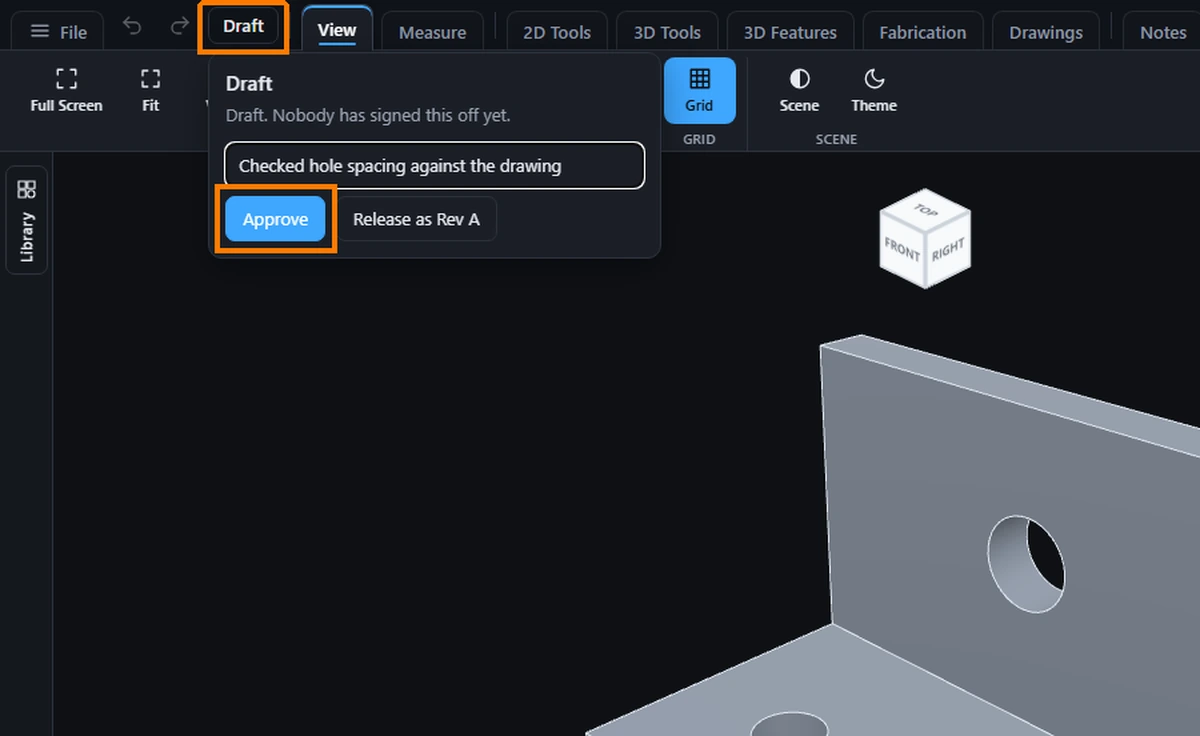
The status chip at the top of the screen, beside the save state, tells you where a saved model stands: Draft, Approved or Released. Press it to sign the model off in one click. This page takes you from a finished model to one that is Released with a revision letter.
What you get: a record on the model of who approved or released exactly this content, when, and your note, plus a revision letter (A, B, C and on) for every release. If the model changes afterwards, the chip says Draft, changed and tells you what changed.
When to Use It
- Mark a part as checked before it goes to the shop
- Issue a part to production and give it a revision letter
- See at a glance whether a model changed after it was approved
- Answer a connected assistant that asked you to look at a model it changed
Step by Step: Approve or Release a Model
- Open a saved model. A model that has never been saved has no chip: click File, then Save, and save it to your account first (see File, Save). The chip appears beside the save state at the top of the screen and says Draft.
- Press the chip. The approval window opens under it.
- Type a note if you want one, such as what you checked. It is optional and holds up to 255 characters.
- Click Approve to say this content is good. Or click Release as Rev A to issue it: it takes the next revision letter at once. You can release without approving first.
- Read the chip. It now says Approved or Released, Rev A, and the window lists who signed, when, and which version.
What the Words Mean
- Draft: nobody has signed this content off. Every model starts here.
- Approved: you looked at exactly this content and it is good.
- Released: you issued exactly this content. It carries a revision letter.
- In review shows by itself when a connected assistant has asked you to approve. You never pick it. Approve, Release or Back to Draft answers it.
- Obsolete shows by itself in the history, beside an earlier release, once a later release exists. You never pick it.
When the Model Changes
A sign-off belongs to the content it was given on: the version, the file type and size, replaced geometry, the part number, the description and the modeling history. When any of these change, the chip says Draft, changed. The window says which one changed, when it was last saved, and whether the current version was Made with AI or Added by AI. The camera, colors, measurements and notes do not count, so looking around a model never undoes an approval.
To sign the new content, press the chip and click Approve or Release again. The next release takes the next letter. The earlier sign-off stays in the history.
Back to Draft
Click Back to Draft to take back an approval, a release or a request. A revision letter is never used twice: after you release Rev A and go back to Draft, the next release is Rev B. Letters run A to Z, then AA, AB and on.
Connected Assistants
A connected assistant can read the status and ask you to approve. Its request puts the model In review with its name and its note. It cannot approve, release or send a model back to Draft; only you can, in the viewer.
Tips and Common Problems
- The chip is missing. The model is not saved yet, you opened it from a share link, or you are not signed in. Save it first with File, then Save.
- I approved it and it says Draft, changed. The model was saved with a change after you approved. Open the window to see what changed, look at the model, and approve again.
- Only the owner of a model can sign it. People you share it with do not see the chip.
- Every plan can use it. The chip checks the saved model, so save your edits first.
- The window lists the history, newest first, with each version and your notes.
Common Mistakes and Messages
- "This model changed since you opened it. Reload it, look at the new content, then sign it off." The model was saved again while the window was open, in another tab or by a connected assistant. The chip now shows the true state. Look at the model, then press Approve again.
- "Approving, releasing and returning a model to Draft are for a person to do." A connected assistant tried to sign. Open the model in the viewer and sign it yourself.
- "Only the owner of this model can sign it off." You are reading someone else's model. Ask its owner.
- "That could not be saved." The connection dropped. Press the button again.
- The window says "Draft. It changed after it was Released (revision A)." The released content is no longer what the model holds. Release again to make Rev B, or press Approve to approve the new content.