The Screen
Ribbon (Top)
A permanent row of tabs, in this order: View, Measure, Sketch, Features, Fabrication, and Documents. Each tab shows its own tools below it, in labeled groups; clicking a tab never starts a tool by itself, only a click on a tool button does. Sketch, Features and Fabrication are three tabs over one modeling session: switching between them, or over to View, Measure or Documents, never ends the session, so you can measure or view a part mid-sketch and pick up again. There is no Exit tool; modeling ends when you save or discard edits, open another model, or open Notes while modeling. See The Toolbar Tabs for what is on each tab.
Each modeling tab keeps the everyday tools in front and puts the less common ones in an Advanced drawer at the end of the tab, one click away. Find a tool, at the right of the top strip, finds any tool by name or by what it does and starts it. Press / (or Ctrl+K) from anywhere to jump to it; with nothing typed it lists the tools you used last and then every tool, tab by tab. The narrow Library strip on the left edge opens the Library drawer.
To the left of the ribbon: the File menu (see The File Menu below), Undo and Redo, and, while a file is loaded, the Share button.
The File Menu
Click File, at the left end of the top strip. The File menu holds only file actions and settings; the tools for a model are on the tabs.
What you get: a short menu in four groups. An item with an arrow (New, Recent, Versions, Export, Share) opens a list beside the menu.
Step by Step
- Click File. The menu opens under it.
- Point to an item with an arrow, for example Export. Its list opens beside the menu. On a phone or tablet, tap it instead; tap it again to close it.
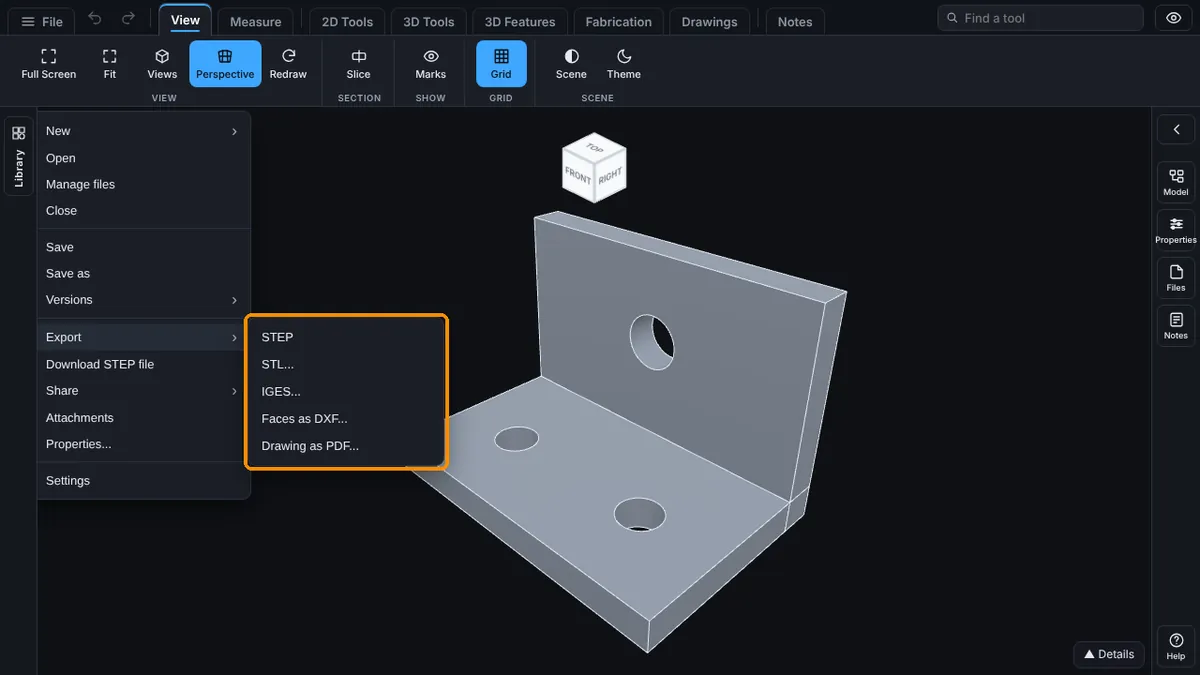
- Click the item you want in the list, for example STL.... The menu closes and that window opens.
- With the keyboard: press Enter on File, then the Up and Down arrows to move, the Right arrow or Enter to open a list, the Left arrow to close it, and Esc to close the menu.
What Is in Each Group
- New (Part, Assembly, Assembly from This Model, Drawing of This Part), Open, Recent (up to eight models you opened lately), Manage files, Close, and Close tab inside a tab strip.
- Save, Save as, Save all (tabs), Create new version and Discard all changes (while modeling), and Versions (Upload a new version, and every saved version of the model).
- Export (STEP, Assembly as STEP while an assembly is open, STL, IGES, Faces as DXF, Drawing as PDF), Download (the file as it was opened), Share (Share this model, Embed on a website), Attachments and Properties (one part).
- Settings.
Where the Tools Are
- The assembly tools (Insert, Move, Rotate, Mate, the patterns, Exploded View, Configurations, Display States, Interference, Clearance, Bill of Materials, Used Parts, Edit Part, New Part) are on the Assembly tab. It is the Features tab, named Assembly while an assembly is open.
- Make Drawing, Notes, Quote, Purchase Orders, Bill of Materials and Cut List are on the Documents tab. Make Drawing is also under File, New, Drawing of This Part....
- Full Screen is on the View tab. Clear All (your measurements) is on the Measure tab.
- Find a tool, at the right of the top strip, finds any of them by name.
Common Mistakes and Messages
- An item is missing from File. Items show only when they apply. Open a model for Export and Properties, open an assembly for Assembly as STEP, and sign in for Recent, Manage files and Share.
- Mate (or another assembly tool) is not in File. It is on the Assembly tab. Open an assembly, then click the Assembly tab.
- "Export as STL needs the Advanced plan or higher, and on a shared model the Exports box ticked." The item is greyed for your plan, or the owner of a shared model has not ticked Exports. Upgrade, or ask the owner.
- The list closes when I move the mouse. Move straight across onto the list; resting on another menu item closes it. Or click the item with the arrow: a clicked list stays open until you click it again.
Right Rail
A column of buttons on the right edge that open and close a docked panel beside the 3D view:
- Model: the model tree (every plane, sketch, and feature step, in order)
- Properties: what is selected in an open sketch, its size and relations
- Files: attachments and saved versions of this model, with badge counts
- Notes: notes and the discussion, each on its own tab, plus a Pins tab listing every note pinned on the model
- Help: opens the Help panel in the same spot, described below
Only one panel is docked at a time; opening another closes the one that was open. Drag the handle at the panel's left edge to resize it; on a phone the panel is a sheet from the bottom with a grab bar instead (see Phone and Tablet).
Help Panel
Click Help, at the bottom of the right rail, below Notes. It opens the same docked panel Model, Properties, Files, and Notes use, with a search box at the top and the full index of help pages below it, grouped like this index. Type to filter the index instantly by keyword; nothing you type leaves the browser, and the model stays on screen the whole time (nothing navigates away). If a tool's panel is open when you click Help, or when you open Help while a tool is armed, it opens straight to that tool's page instead of the index, so help always starts where you are. Click the index link at the top of any page to go back to the full list.
The 3D View
The center of the screen: your model, a light grid floor (optional, see Viewing), and the view cube at the top right for orbiting to a named view. Drag to orbit, scroll or pinch to zoom, right-drag or two-finger drag to pan. See Viewing for Fit, Views, and Perspective, and Mouse and 3D Mouse for the full controls.
Bottom of the Screen
While a model is loaded, a small Details area at the bottom right can be opened to show the bounding box, volume, and other file facts; it stays collapsed until you open it, so it never covers the model. There is no standing status line across the bottom and no permanent hint banner: a tool's own short instructions appear only while that tool is active, near where you are working.