Export This Face as DXF
Turns one flat face of the model into a 2D DXF file a shop can cut from.
What you get: a DXF file of one flat face, named after the model with -face.dxf added (sample-bracket-face.dxf), its outside and its holes as closed profiles of lines, arcs and circles at true size, in your display unit.
Step by Step
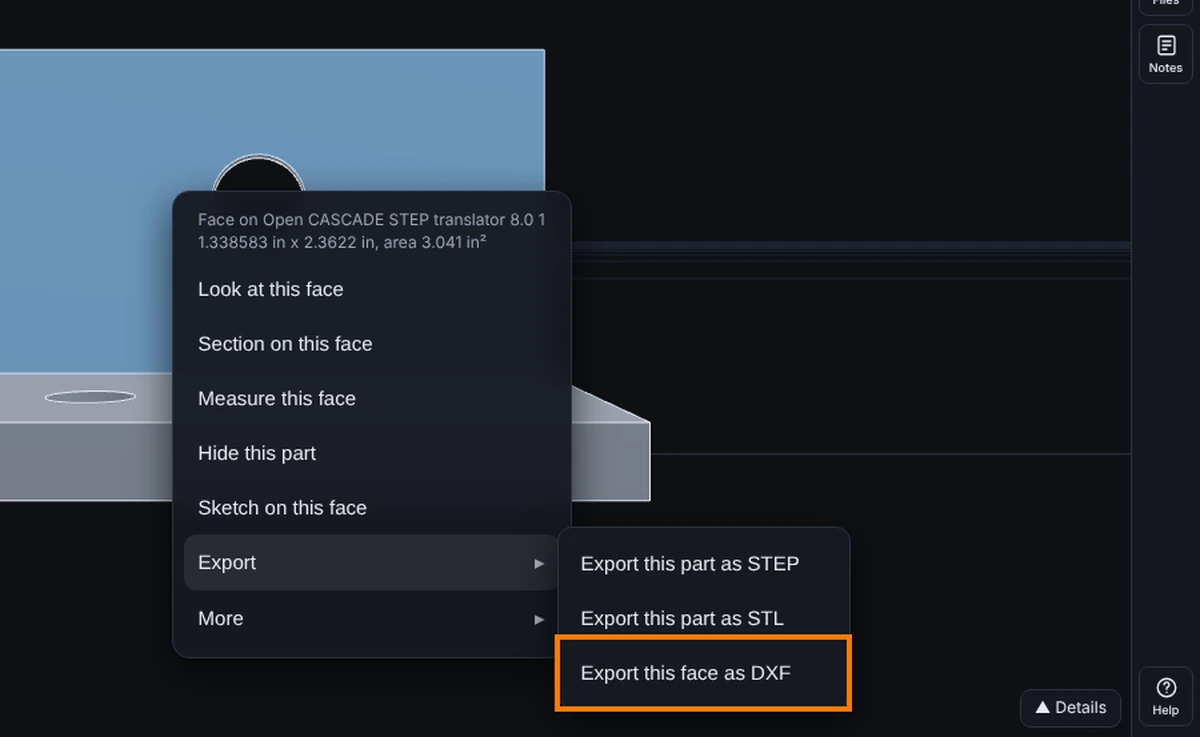
- Open a 3D part. Right-click a flat face on the model. It lights up and the menu appears, with the face size and area at the top, such as 1.338583 in x 2.3622 in, area 3.041 in².
- Point to Export in the menu (or click it), then click Export this face as DXF. (If it reads Export this face as DXF (Advanced), your plan does not include exports; if it is grey, the face is curved.)
- The file downloads, named after the model with -face.dxf added. A message says how many entities it holds and the unit, for example "Face exported: 2 closed profiles, DXF 2018, in inches." On bent sheet metal a window asks first; see Bent Sheet Metal below.
Rules and Options
- The face must be flat. A curved face cannot become a 2D profile, and the item is grayed with the reason.
- The unit is inches when your display is imperial, otherwise the metric unit you display in. A 3 in. wide face comes out 3 inches wide.
- Holes and outer edges are both written, as lines, circles and arcs.
- It needs the Advanced plan or higher. On a lower plan the item shows (Advanced) and a click explains why.
- On a shared model it also needs the Exports (DXF, STEP, STL) box on that share.
- If the edge cannot be fitted cleanly, nothing is exported and you are told.
Bent Sheet Metal
If the face is on bent sheet metal (a STEP or IGES part whose flat faces run smoothly into bends), a window asks Selected face only, or the whole flat pattern?
- Selected face only is already chosen and exports the face exactly as above.
- Whole flat pattern (unfolded) lays the whole sheet out flat: every flange at its true size and each bend as its bend allowance, angle x (inside radius + K x thickness). Holes and cut-outs come along. The file is named with -flat.dxf.
- Pick the Material to use its K-factor from the bend table, or type a K-factor from 0 to 1 for this export. The window shows the flat size first. On a part made with Sheet Metal, the window starts from the part's own material and K-factor.
- Method says how each bend is sized:
- K-factor (the default): the K-factor from the bend table for the Material, or the one you type.
- Bend allowance (typed): type the bend allowance from your press brake chart for a 90 degree bend of this sheet at this inside radius: the length the bend itself takes in the flat. Type it in your display unit, or put a unit after it (0.1 in, 2.5 mm).
- Bend deduction (typed): type the bend deduction for a 90 degree bend: what comes off the two outside flange lengths added together. For a 90 degree bend, bend deduction = 2 x (inside radius + thickness) - bend allowance.
- Shop table: each bend takes its K-factor or bend allowance from your own shop table, the first row that matches the material, the thickness and the inside radius. Press Edit shop table... to fill it in. A bend that no row matches uses the bend table K for the material, and the window says so. See Shop Bend Table.
- A typed value is turned into the K-factor it means for this sheet, and the window shows that K beside the flat size. A 90 degree bend lays out at exactly the value you typed; a bend of another angle gets angle x (inside radius + K x thickness) with that K. The DXF note names the method, the value and the K.
- Cancel, Esc or a click outside exports nothing.
- A closed shape, such as a tube or a box with closed corners, cannot be laid flat. You are told and nothing is exported.
- A typed bend allowance or bend deduction is refused in words, and nothing is exported, when it is empty, not a number, zero or less (a bend allowance) or below zero (a bend deduction), or when the part has bends of more than one inside radius (one chart value fits one radius: use K-factor). It is also refused when it means a K-factor outside 0 to 1, which usually means the value is for another unit, another radius or another angle.
For example, a 2 thick sheet with a 2 inside radius and a bend allowance of 4.5 for 90 degrees means K 0.432; the same bend with a bend deduction of 3.5 means a bend allowance of 4.5 too (2 x (2 + 2) - 3.5), so the flat is the same.
Common Mistakes and Messages
- Which method? Use the one your press brake chart gives. If it gives a bend deduction, choose Bend deduction (typed) and type it as it is; there is nothing to work out by hand.
- Charts for other angles. The typed value is for a 90 degree bend. If your chart has its own value for a 45 or 120 degree bend, that bend may come out a little different here; check the flat size, or use the K-factor.
- Grayed out. The face is curved, or exports are not allowed here. Rest the pointer on the grey item to read why: "This face is not flat, so it cannot become a 2D profile." Right-click a flat face instead.
- "Export a face as DXF on the Advanced plan or higher." The item reads Export this face as DXF (Advanced) and a click says this. Exports need the Advanced plan or higher.
- "The owner of this model has not allowed exports." The model was shared with you without the Exports box ticked. Ask the owner to tick it.
- "Could not fit this face's boundary cleanly. Nothing was exported." The edge of the face could not be traced cleanly. Try a neighbouring face, or export the part as STEP.
- Right-click gives no menu. Menus do not show on a DXF drawing; open a 3D model.
Choosing a Bend Profile
In the flat pattern window, choose the press brake in the Bend profile list at the top. The flat size is worked out again with its numbers, the DXF header names it and the file name ends with it. Shop default writes the file as before. See Bend Settings and Machine Profiles.