File, Download File
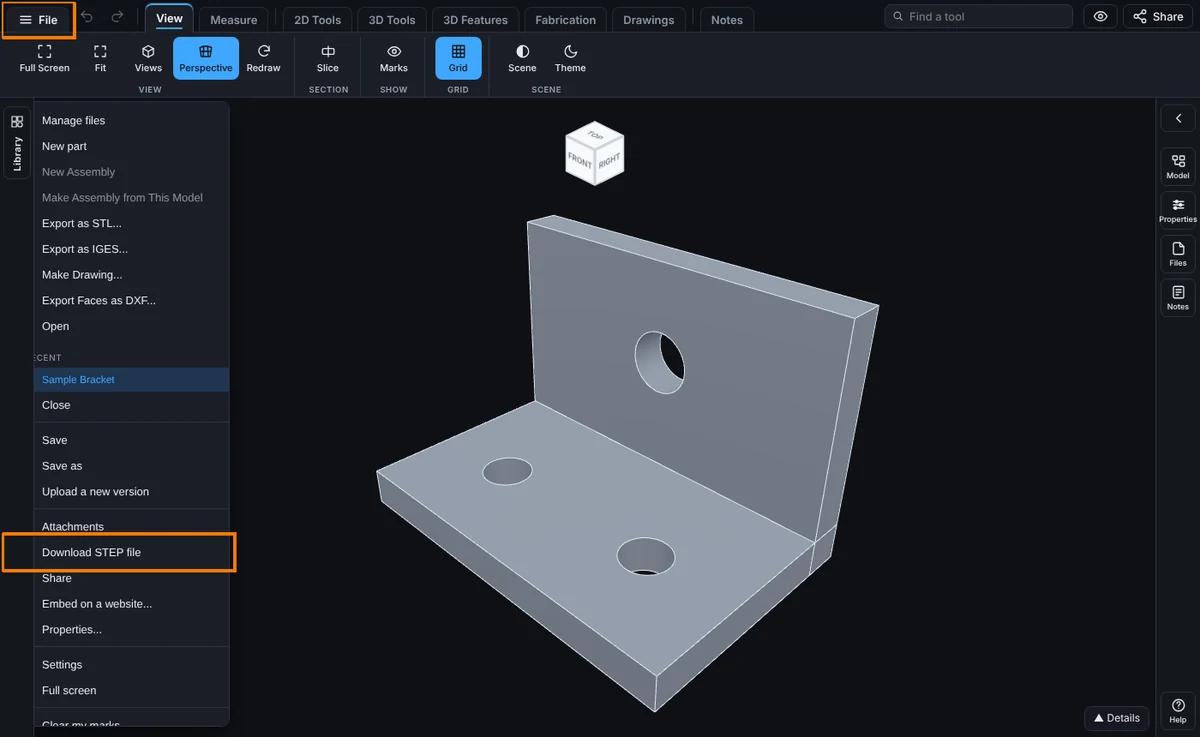
File, Download saves the model's file to your computer.
What you get: the model's own file (the STEP, STL or other file it came from) saved by your browser into your Downloads folder.
What It Does
The item shows the real format, such as Download STEP file or Download STL file. A saved model downloads the stored original. A model you only opened from your computer downloads the file in hand.
Step by Step
- Open the model.
- Click File at the top left.
- Click Download <format> file, for example Download STEP file.
- The browser saves it.
Good to Know
- It needs an account. Signed out, the item is grayed and says to create an account.
- It gives the original, not your edits. While modeling is open, File, Export, STEP saves the edited model instead.
- On a share, the Download / Re-share box decides if a visitor can.
Common Mistakes and Messages
- "Create an account to download the model" shows on the grayed item when you are signed out, and clicking it says "Create an account to download models". Sign in or create a free account, then download.
- "Open a model first": nothing is open yet. Open a model, then download.
- My edits are not in the file. Download gives the file as stored. To save your changes, open modeling and use File, Export, STEP; the message "Edited model downloaded as STEP." confirms it.
- The item is grayed on a model someone shared. The sender left Download / Re-share unticked, so the share is view only. Ask them to share it again with that box ticked.