Play Animation: Choose a View
Play Animation on the Features tab plays an exploded view in the Animation Controller. When the assembly has more than one exploded view and none is showing, the Play Animation window asks which view to play. Anyone who views the assembly can play it; the Pro plan is needed only to make or change views.
What you get: the view you pick plays from the start in the Animation Controller, with its camera moves, its motion and its step times.
Step by Step
- Open an assembly that has two or more exploded views. See Assemblies: Exploded Views to make them.
- If a view is exploded now and you want a different one, right-click it in the Model tree and choose Collapse first.
- Click the Features tab, then Play Animation, beside Exploded View.
- The Play Animation window opens and asks "Which exploded view should play?" There is one button for each view, named as in the Model tree.
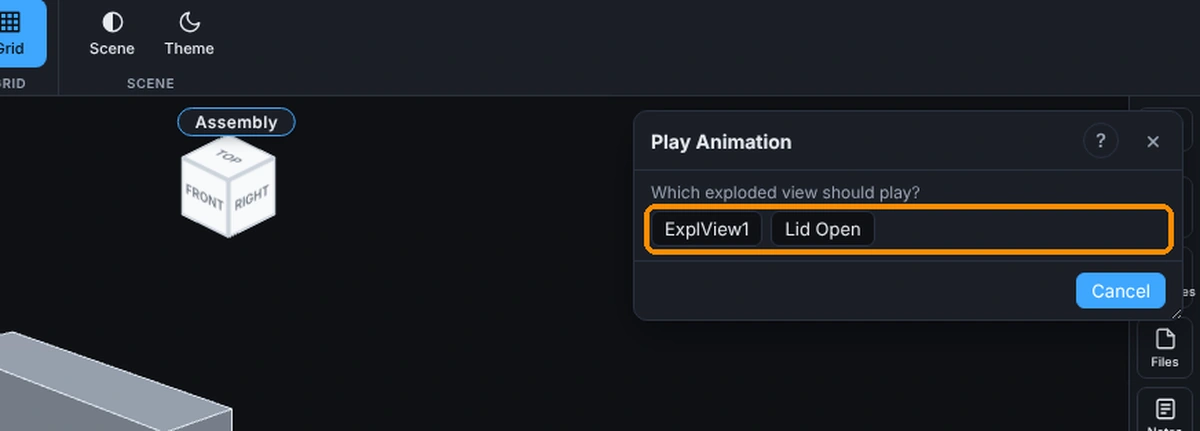
- Click the name of the view you want. The window closes and the Animation Controller opens and plays that view from the start.
- To close the window without playing, click Cancel, the X or press Esc.
With only one exploded view, or with a view exploded now, Play Animation skips the window and plays that view at once.
Options
- A button for each view: plays that view.
- Cancel: closes the window and plays nothing.
- ?: at the top right, beside the X. Opens this page.
Common Mistakes and Messages
- "This assembly has no exploded views yet. Make one with Exploded View first." Make a view with Exploded View on the same tab, then play it.
- "Wait for the video to finish, or cancel it." Export Video is making a file from the animation. Wait for it, or cancel the video.
- A view played at once and the window never opened. A view was exploded, so that one played. Collapse it in the Model tree first, or right-click the view you want and choose Play Animation.
- The animation does not do what I set. How it plays (motion, step times, camera, the end) is set in Animation Settings.