Section: Components Not to Cut
With an assembly open, Slice cuts every component with one flat plane. The Components not to section window picks the components the slice leaves whole, so you can see a shaft, a bolt or a pin complete inside a cut housing. It is a view only: nothing in the assembly moves or changes.
What you get: the components you tick are drawn complete while every other component is cut, and the cut outline skips them.
Step by Step
- Open an assembly. See Assemblies: Start and Insert Parts if you have none yet.
- On the View tab, click Slice in the Section group. Half of the assembly is cut away and the Slice bar appears on the right of the view, with Side, Up, Front, Face, a slider, Not cut and Flip.
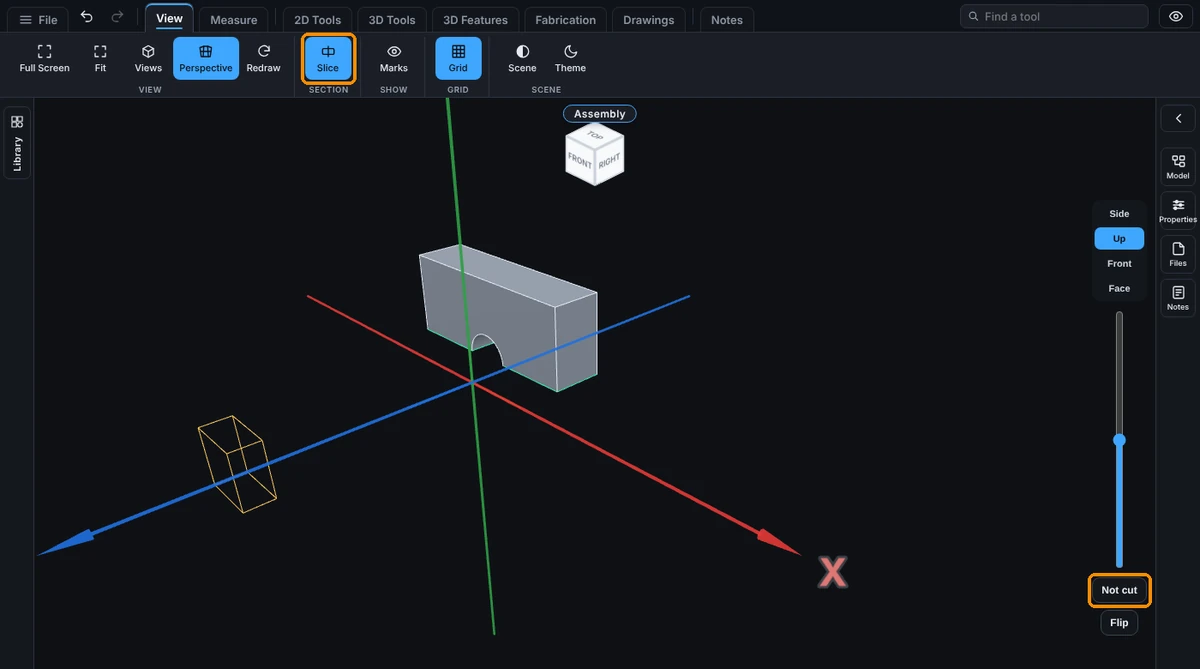
- In the Slice bar, click Not cut. The Components not to section window opens with a tick box for every component.
- Tick each component you want to see whole. It is drawn complete at once, and the line at the foot of the window counts them, for example "1 component is drawn whole."
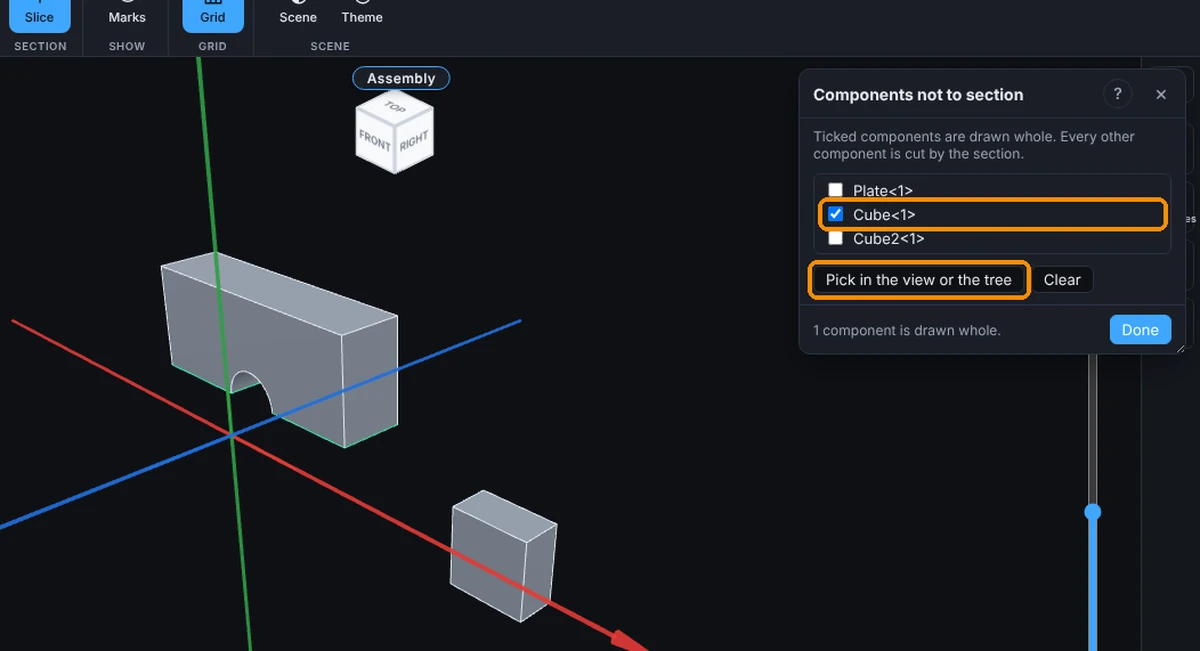
- To pick on the screen instead of in the list, click Pick in the view or the tree. The button lights up. Click a component in the view, or its row in the Model tree: the first click leaves it whole, a second click cuts it again. Click the button again to stop picking.
- Click Clear to cut every component again. The foot line says "Every component is cut."
- Click Done, the X or press Esc to close the window. The components you ticked stay whole while Slice is on.
You can also right-click a component in the Model tree and choose Assembly tools, Do Not Section This Component, or Section This Component to cut it again, without opening the window.
Options
- The tick boxes: one for each component, named as in the Model tree. Ticked means drawn whole.
- Pick in the view or the tree: while it is lit, each click on a component turns it between whole and cut.
- Clear: cuts every component again.
- ?: at the top right, beside the X. Opens this page.
The choice is kept while the assembly is open, and it is saved with the section when you save the assembly. It works on a shared assembly you are only viewing, too. Up to 500 components can be left whole.
Common Mistakes and Messages
- There is no Not cut button in the Slice bar. The button shows only while an assembly is open. A single part has no components to leave whole.
- "Click a component." You clicked empty space while picking. Click on the part itself, or on its row in the Model tree.
- "No components yet." The assembly is empty. Insert components first.
- The component I picked is cut again. Picking turns a component between whole and cut, so a second click on it puts it back in the cut. Click it once more, or tick its box.
- Nothing looks cut at all. The slider may be at one end of the model. Drag it toward the middle. See Slice.
- Clicking a component in the view does nothing to the section. Only clicks while Pick in the view or the tree is lit pick components. Click that button first, or tick the component's box.