The Embed Tab
The Embed tab of the Share window puts your model on your own website. Embedding is a Pro feature. Pro Plus and Pro Max are bigger plans that include it. Visitors can turn, zoom and pan the model, but they never get your file.
What you get: a few lines of code to paste into your web page, which show your model in 3D on that page, on the websites you list.
Step by Step
- Save the model to your account, then click Share at the top right and Share this model in its menu. (Or choose File, Share, Embed on a website...: that opens a window of its own named Embed on a website, with the same controls and no tabs, so skip step 2.)
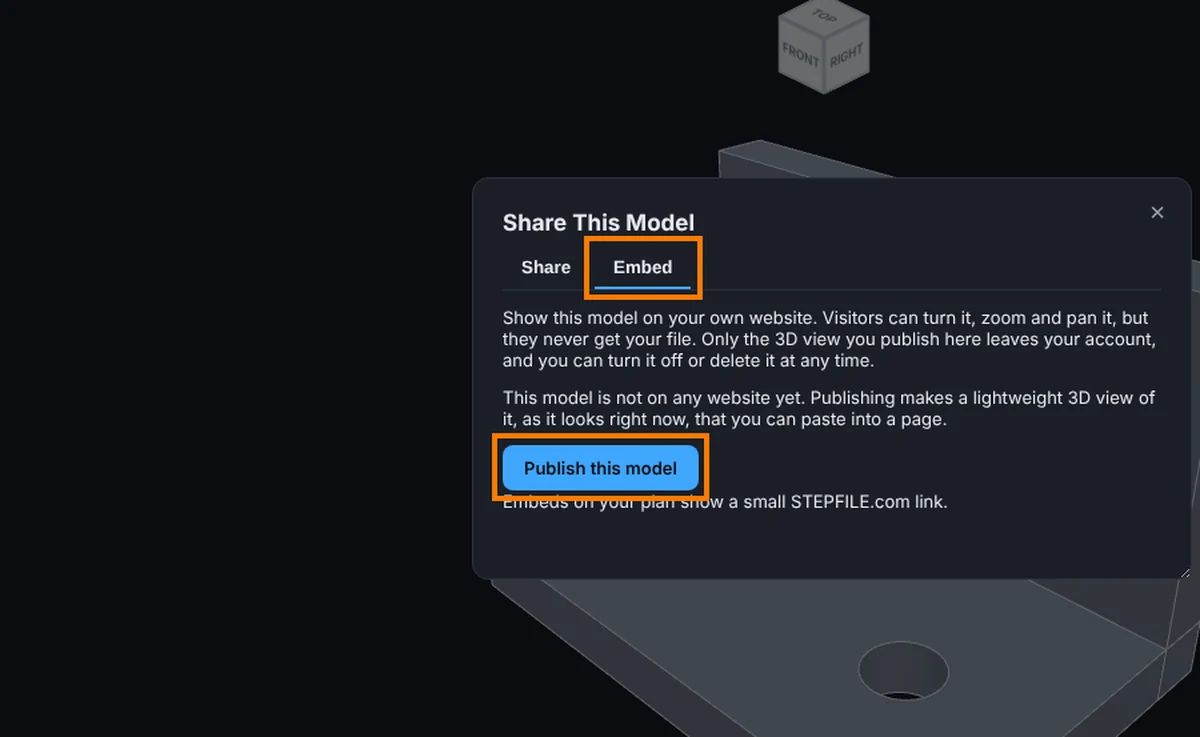
- Click the Embed tab. The window always opens on Share.
- Click Publish this model. Your browser makes a light copy of the model with a picture.
- Under Websites that may show it, one per line, write each site, like www.example.com or *.example.com. Only https sites count. Left empty, it shows only on this site.
- Choose the Background (Dark, Light or Transparent) and the other boxes. A preview shows the result.
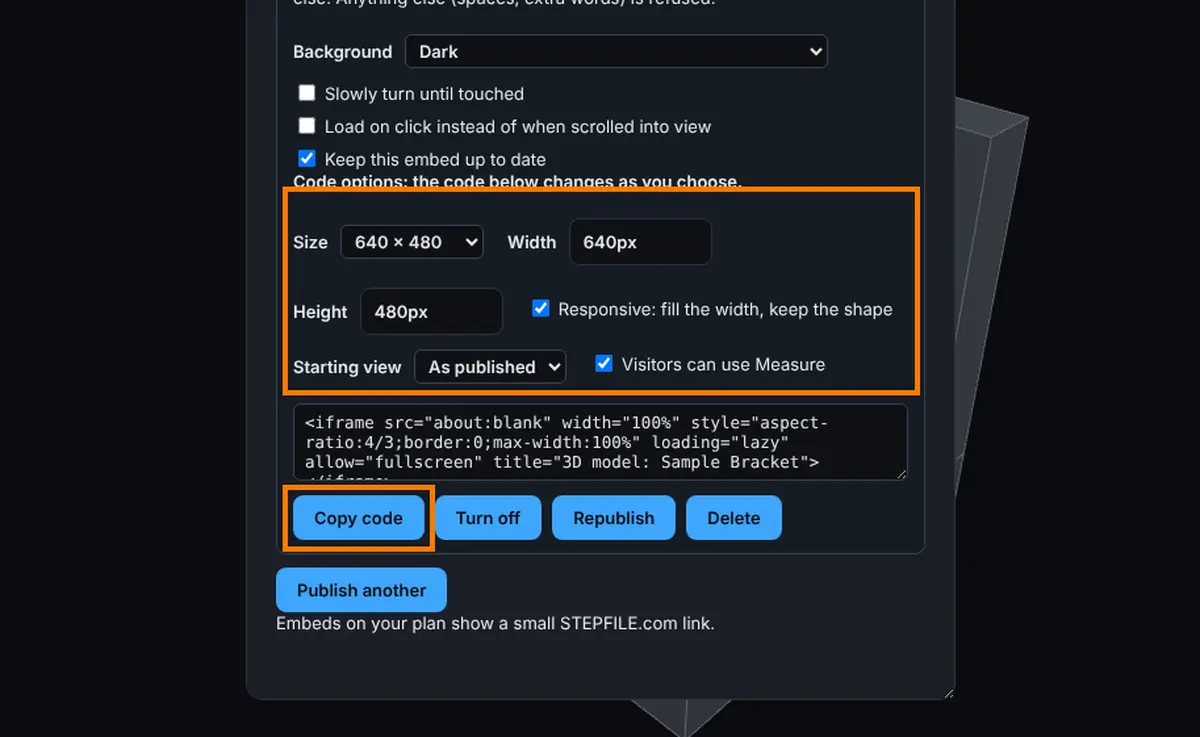
- Under Code options, set the size, starting view and Measure.
- Click Copy code and paste it into your page.
Code Options
- Size: 640 x 480, 800 x 600 or 100% x 500, or Custom with your own Width and Height. Type pixels (700) or a percent (50%). Pixels run from 120 to 4000 and percents from 10 to 100; a number outside is brought to the nearest allowed one.
- Responsive: fill the width, keep the shape: on by default. The frame fills the space on your page and keeps the shape of your width and height, so 800 x 600 stays 4 to 3. Untick it for a fixed size. A percent size has no shape, so it uses 4 to 3.
- Starting view: As published, Isometric, Front, Top, Right or Current view. For Current view, turn the model first, then press Take current view.
- Visitors can use Measure: untick it and the Measure button does not show for visitors of that code.
The options live in the code you paste, so one embed can have a different code for each page. Nothing is republished.
The Other Settings
- Slowly turn until touched
- Load on click instead of when scrolled into view
- Keep this embed up to date: on by default; the embed follows your saved model.
Managing It
A chip reads On, Off, Not published or Out of date. Buttons turn it off or on, Republish and delete. Use Publish another to make a second embed of the same model. Counters show views, plays and where it is shown.
The STEPFILE.com Mark
On Pro, a small clickable STEPFILE.com link sits in the corner of the embedded model. On Pro Plus and Pro Max there is none. It follows your plan when the page loads. If your plan drops below Pro, the embed pauses and visitors see a note.
Common Mistakes and Messages
- "Code copied. Paste it into your page." The code is on your clipboard. Paste it into your page's HTML, not into its visible text.
- "Press Ctrl+C to copy the selected code." Your browser did not let the page copy. The code is selected; press Ctrl+C (Cmd+C on a Mac).
- "The model changed since you published. Press Republish to update the embed." The chip reads Out of date. Click Republish, or tick Keep this embed up to date.
- "Save this model to your account first, then embed it." File, Share, Embed on a website... opened nothing but this message: the model is not saved yet. Save it, then try again.
- "Embedding models on other websites is on the Pro plan." Your plan does not include embedding, so no window opens.
- No Embed on a website... under File, Share. You are not signed in. Sign in first.
- "There is nothing visible to publish." Every part is hidden. Show at least one part, then publish.
- "This model is too large to embed (the limit is 40 MB)." Hide some parts, or try a simpler model.
- The model does not show on my site. The site is not on the Websites that may show it list, or it is not https. Add it, one per line.