Sketch Chamfer
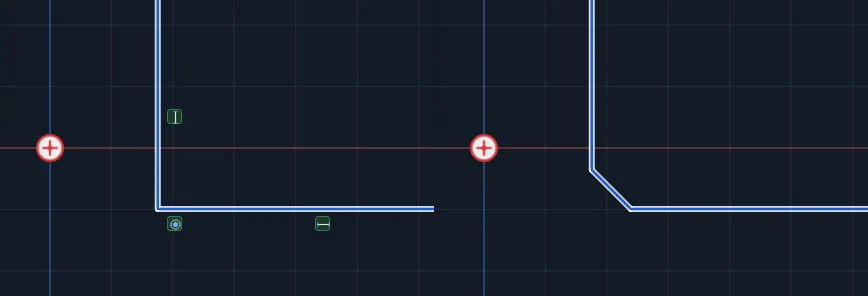
Cuts a corner in the sketch with a straight line. Where two pieces meet, the corner is cut back and a straight piece joins the two cut ends. Choose how it is sized: the same distance on both sides, a different distance on each, or a distance and an angle. This works on the 2D sketch, not the solid part (compare Round, on the Features tab, which works on the part's edges).
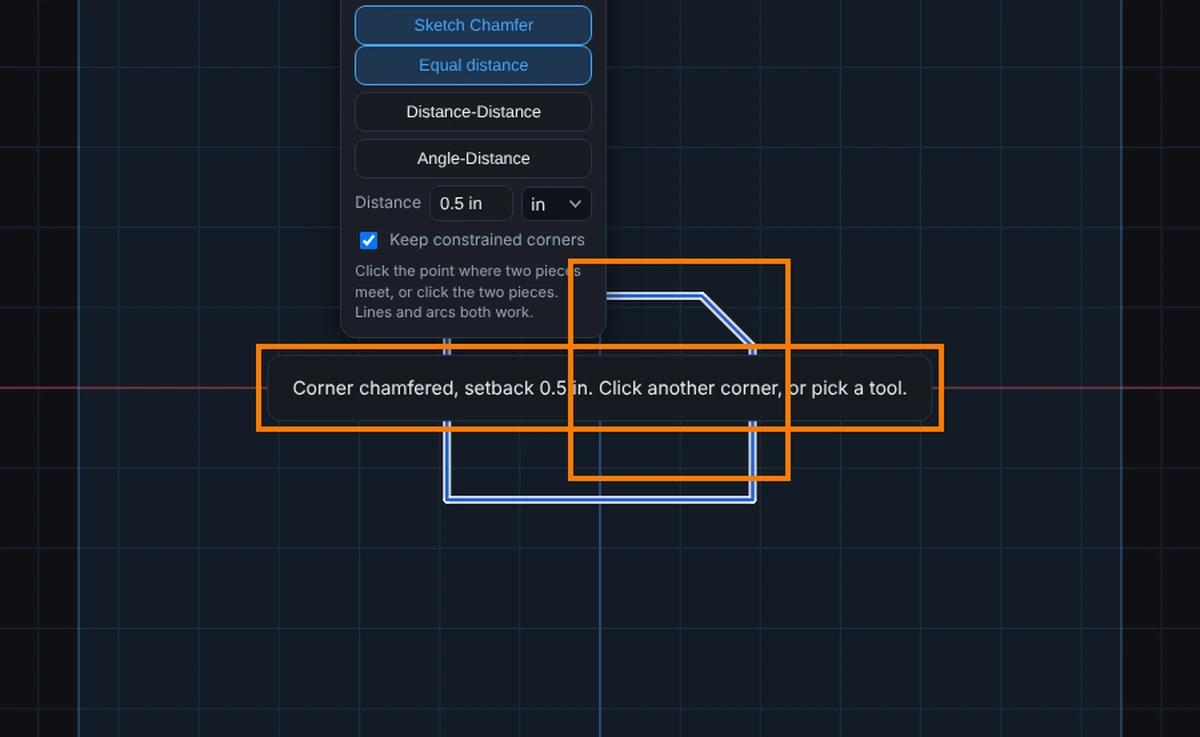
What you get: a sharp corner of your sketch cut off with a straight line of the size you typed, and the message Corner chamfered, setback 0.5 in. in the middle of the view for a few seconds.
When to Use It
- Break the sharp corners of a plate with a 1/8 in cut
- Cut a corner at 45 degrees, or any angle you choose
- Take a bigger bite along one side than the other
- Cut a corner that has a dimension on it without losing the dimension
Step by Step
- Open a sketch on a plane or a face (see Planes and Faces). Sketching is part of modeling, which comes with the Pro plans.
- Draw the pieces that meet at the corner.
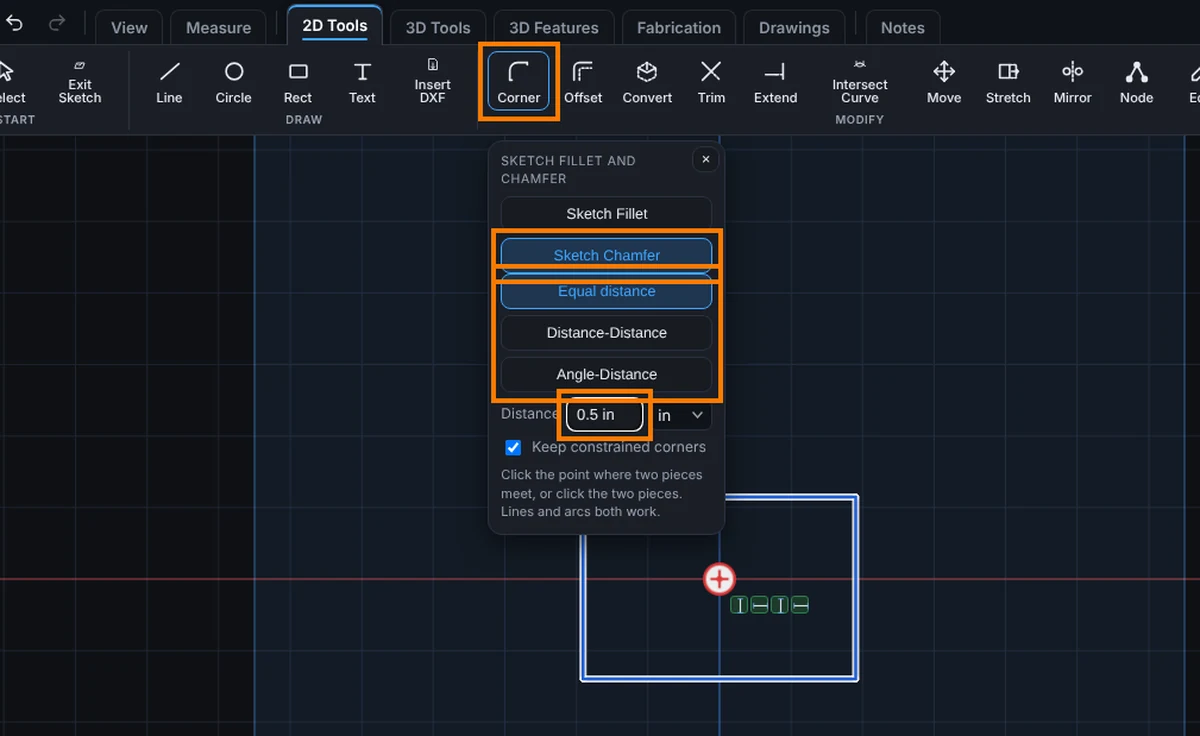
- On the Sketch tab, click Corner, then click Sketch Chamfer.
- Pick how to size it: Equal distance, Distance-Distance or Angle-Distance, and type the sizes.
- Click the point where the two pieces meet. Or click the two pieces, one after the other.
- The cut is made and a message says so. Click another corner to keep going, or press Esc to end the tool.
Options
- Equal distance: the same Distance is cut back along both sides.
- Distance-Distance: Distance 1 along the first side and Distance 2 along the second. Tick Reverse to swap which side gets which.
- Angle-Distance: Distance along the first side, then the Angle the cut makes with that side, in degrees. The angle must be more than 0 and less than 180 degrees, and a distance that does not fit the corner is refused. Tick Reverse to measure along the other side.
- Keep constrained corners: on by default. When a dimension or relation is tied to the sharp corner, a small point is left where the corner was, so those dimensions still hold. Turn it off and they are let go.
Tips and What to Expect
- When nothing else is tied to the corner, the two pieces and the cut become one connected outline piece. When something is tied to it, the cut stays a piece of its own, tied to both ends.
- A distance longer than the side, an angle of zero or 180 degrees, or a size of zero is refused and nothing changes. A message says so.
- A chamfer works between lines and arcs, in any mix. Two sides of one shape, such as the sides of a rectangle, can be picked one after the other. Two pieces in a straight line are not a corner to cut.
- One Undo takes back the whole chamfer, including any new ties.
- Press Help while Sketch Chamfer is armed to open this page.
Common Mistakes and Messages
- "Type a distance more than zero." The Distance box is empty or zero. Type a size, such as 0.125 in, then click the corner again.
- "Type the second distance too." With Distance-Distance, both Distance 1 and Distance 2 need a size.
- "Type an angle between 0 and 180 degrees." With Angle-Distance, the Angle box is empty, zero or 180. Type an angle such as 45.
- "More than two pieces meet there; the corner is ambiguous. Click the two pieces instead." Three or more pieces end at that point. Click the two pieces that form the corner, one after the other.
- "That corner cannot hold with the relations already there. Nothing changed." A relation or dimension fights the cut. Leave Keep constrained corners ticked, or remove the relation, and try again.