File, Export, History
History (File, Export, History) saves the steps you modeled as a zip file on your own computer: the steps as plain data, and one STEP solid for each step. Nothing about how your part was made stays locked inside StepFile.com.
When to Use It
- Keep a backup of how a part was made, not only what it looks like
- Give a shop or another CAD program the part as it stood after any step
- Look at the part step by step in a program of your choice
Step by Step
- Make a part with the modeling tools, with at least one step. The item is in the menu only while a part is being modeled.
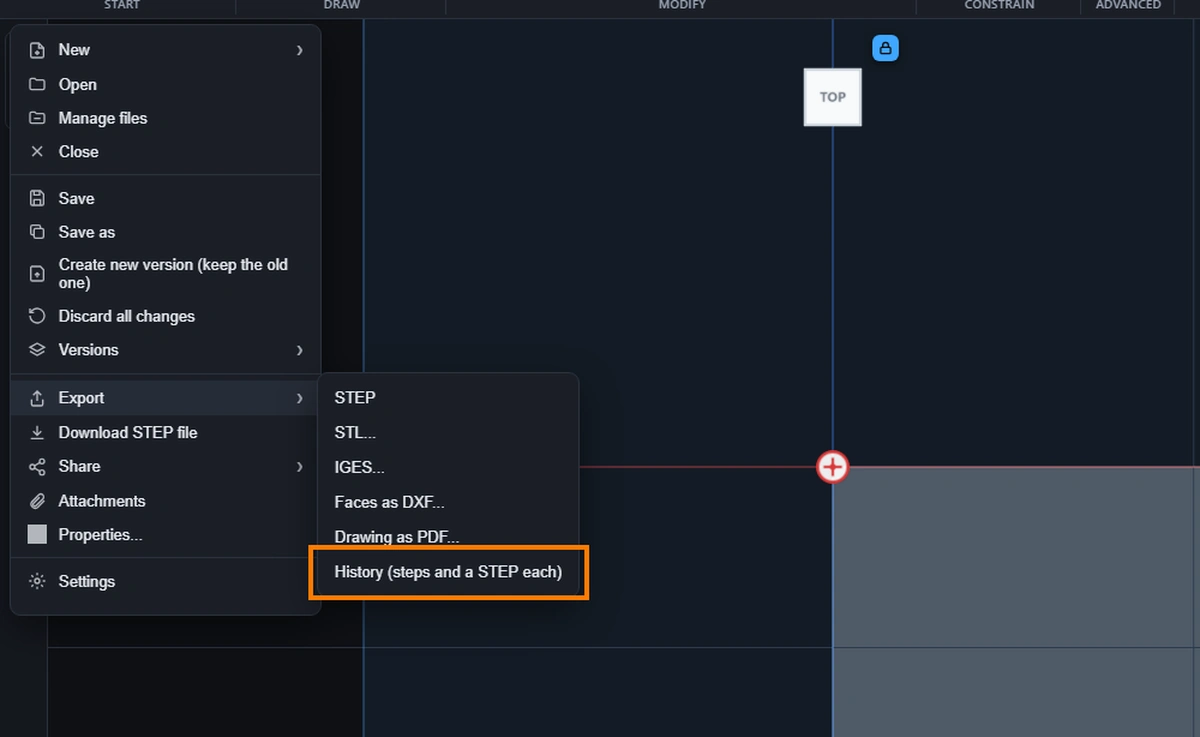
- Click File, point to Export, then click History (steps and a STEP each).
- The viewer rebuilds the part one step at a time and writes each result. Then it puts your part back exactly as it was, with the blue bar of the History where you had it. A long History takes several seconds.
- The browser downloads a file ending in -history.zip. A message reads History exported, with the number of steps.
What Is in the Zip
- history.json holds the steps in order, each with its name, its type and its volume, and the full step data. It is plain text that any program can read.
- The steps folder holds one STEP file per step, such as 01-base-flange1.step. Each is the part as it stood after that step, and the last one is the finished part. Any CAD program opens STEP.
- README.txt says the same in two lines.
Plans
The history file comes on every plan. The STEP file for each step needs the Advanced plan or higher, like every other STEP export. On the other plans the zip holds the history file and a note that says so.
The AI
An AI assistant connected to your account runs the same action, model.export_history, and gets the history back in its answer. It changes nothing in your part.
Common Problems
- The item is not in the menu. No part is being modeled. Make one first: see File, New, Part.
- A message says to finish the step edit first. You are editing the sketch of a step. Press Update step or Cancel at the top of the Model tree, then export.
- A step is listed with an error and has no STEP file. In rare cases a step cannot be rebuilt by itself. The other steps are fine, and history.json still holds every step.
- Nothing downloaded. The browser may have blocked the download. Allow downloads for this site and try again.