Move/Copy Bodies
Moves whole solid bodies, or makes copies of them, by a typed distance, from one picked point to another, or by turning them about an axis. It is one step in History, so Undo takes it back in one go.
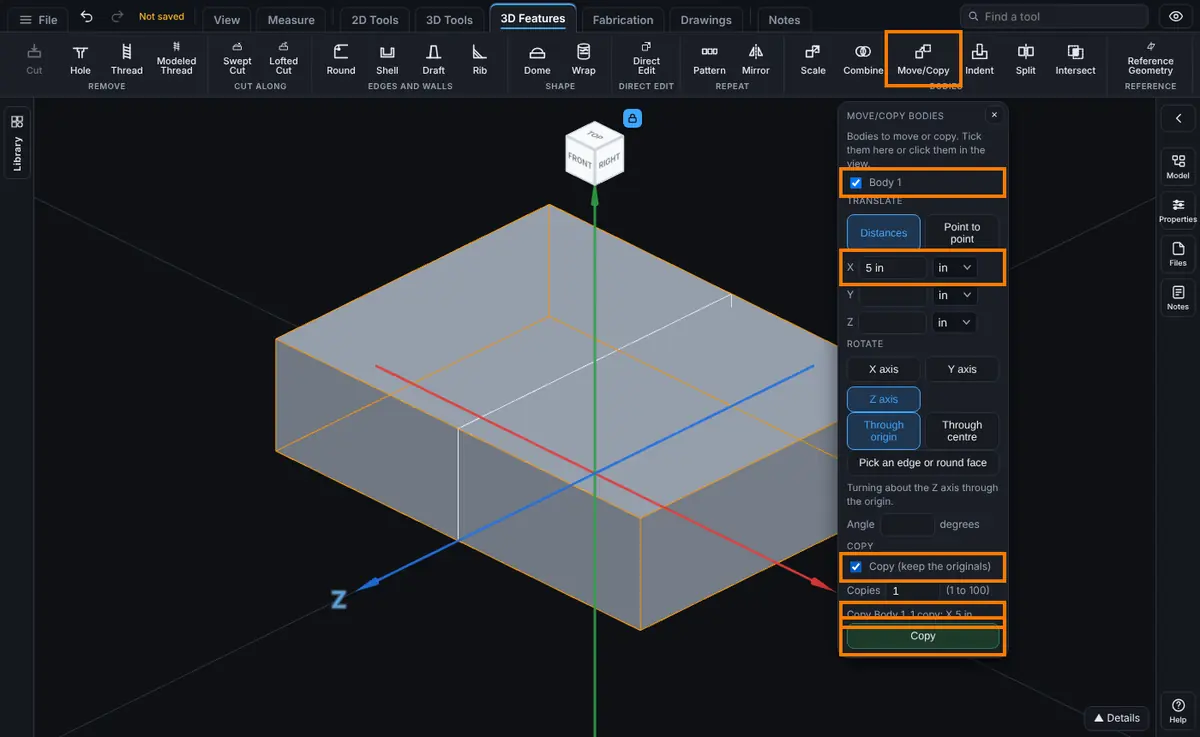
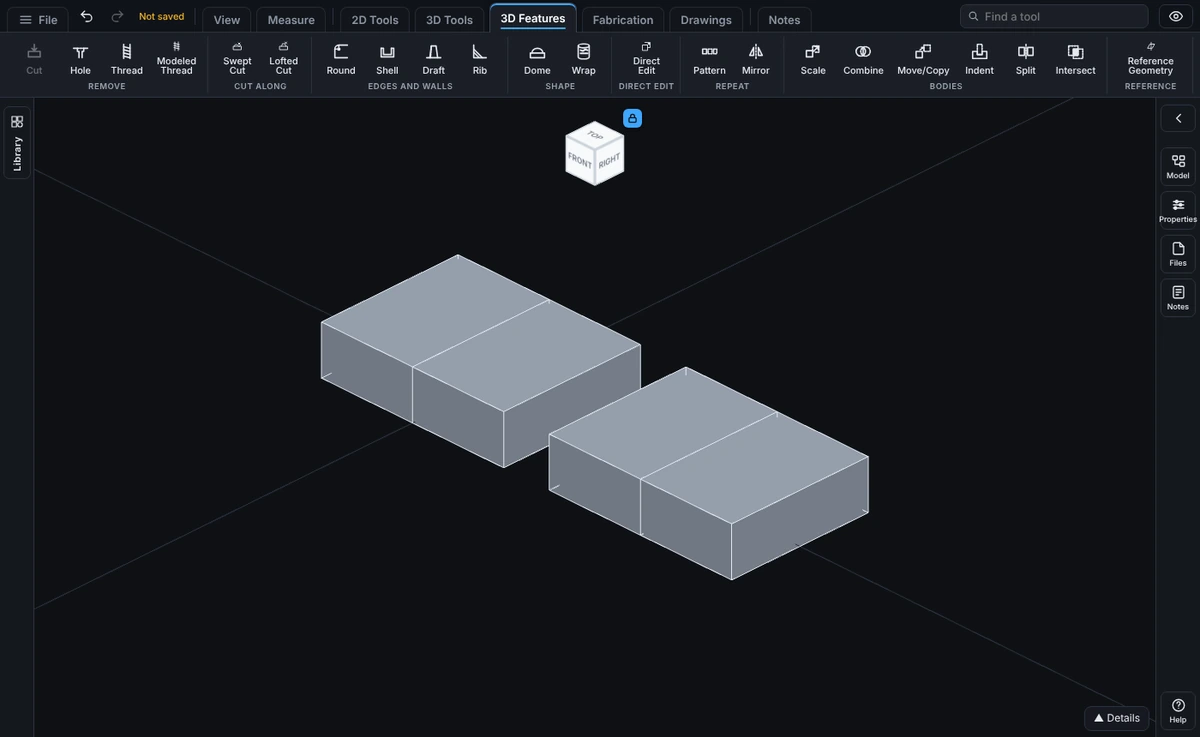
What you get: the chosen bodies moved or turned, or copies of them placed, in one History step, with a message such as "Copied: Copy Body 1, 1 copy: X 5 in."
When to Use It
- Slide a body to where it belongs, for example 2 inches along X.
- Line one body up with another by picking a corner on each.
- Turn a body a quarter turn, or turn it in place.
- Make a row of copies of a body, or a ring of turned copies, without drawing anything again.
How to Start It
Click Move/Copy on the Features tab. The panel opens with the Move button off; it turns on once a body is ticked and there is a distance or an angle to apply.
Step by Step
- Choose the bodies. Tick them in the list at the top of the panel, or click them in the 3D view (an orange box shows each chosen body; click again to drop it). Nothing chosen is refused.
- To translate (slide) them, stay on Distances and type how far along X, Y and Z. Any unit works ("25 mm", "1 3/8 in", "-2 ft"), fractions work, a minus sign goes the other way, and an empty box means 0. A plain number is in the units you are showing.
- Or choose Point to point, press Pick from point, click a corner of the part, press Pick to point and click another corner. The bodies move by the distance between the two corners. From origin and To origin use the origin as one of the points.
- To turn them, choose the axis: X axis, Y axis or Z axis, a Reference axis from the list (made with Reference Geometry), or Pick an edge or round face and click a straight edge or a cylinder or cone face (the turn is about its axis). For X, Y and Z, Through origin swings the bodies round the origin and Through centre turns them in place about the middle of the chosen bodies.
- Type the Angle in degrees. A positive angle turns counterclockwise looking down the axis toward you for the X, Y and Z axes. For a picked edge or a reference axis the direction follows the axis itself, which can point either way, so if it turns the wrong way, use a minus angle. Leave it empty for no turn.
- To keep the originals, tick Copy and type the number of Copies (1 to 100).
- Read the line above the button, which says what will happen, and press Move (it reads Copy when Copy is ticked).
Every Option
- Bodies: the list shows the first 60 bodies in the model; clicking any body in the view ticks it too, so a body past the 60th is chosen in the view.
- Distances: X, Y and Z, each in any unit, each from -10,000 metres to 10,000 metres.
- Point to point: two corners of the part. The panel prints the two points. Only corners and the origin can be picked.
- Rotate: axis, Through origin or Through centre (for X, Y and Z only), and the angle, up to 36000 degrees either way.
- Copy and Copies: with Copy ticked the chosen bodies stay where they are and new bodies are made. Copy 1 is moved and turned once, copy 2 twice as far and twice as much, and so on, so three copies of a cube moved 20 mm along X sit at 20, 40 and 60. The copies are named Body 1, Body 2 and so on (the next free number). At most 400 bodies are allowed in all.
- When you move and turn in one step, the turn happens first and then the slide.
What You See
The step appears in the Model tree and in History as, for example, "Move Cube: X 20 mm, turned 90 degrees about the Z axis". A move leaves the volume and weight exactly as they were; copies add their volume. Each body is checked after it moves, and a body that would change is refused and nothing changes.
Editing the Step
Select the step in the Model tree and choose Edit Feature: the X, Y and Z boxes, the angle (when the step turns) and the number of copies (when it copies) open in the row. The bodies and the axis stay as they were; to change those, delete the step and make it again. Suppressing the step leaves the bodies where they were. The step can be reordered like any other, but not above the step that made the bodies it names.
Tips
- To turn a body in place, choose Through centre. To swing it round the origin, choose Through origin.
- To space copies evenly in a row, type the spacing as the distance and the number of copies. For a ring, put the body away from the axis, choose Through origin (or a Reference axis through the middle of the ring), type an angle such as 45 and 7 copies. Through centre turns each body about its own middle, so the copies would pile up in place. Or use Pattern for features.
- Moving a body onto another does not join them. Bodies that overlap stay separate bodies.
Common Mistakes and Messages
- "Choose the bodies to move: tick them in the list, or click them in the view." Tick at least one body first.
- "That move does nothing: type a distance or an angle that is not zero." Every box is empty or zero.
- "The number of copies must be a whole number from 1 to 100." Fix the Copies box.
- "No corner there. Click right on a corner of the part." In Point to point, click right on a corner of the part.
- "That is not a straight edge or a round face. Pick a straight edge, or a cylinder or cone face." Pick a straight edge, or a cylinder or cone face.
- A body that no longer exists. The step names a body an earlier step changed or removed. The message gives its name. If an earlier step changes a body's size or removes it (an Extrude made deeper, a body suppressed or deleted), this step stops and names the body instead of moving a different one. Move the step below the step that makes the body, or delete it and make it again, picking the body.
- An older viewer. A model with a Move/Copy Bodies step stops at that step when it is opened in a viewer older than 6.344.0.