Sheet Metal Unfold and Fold
Unfold lays bends of a sheet metal part flat, as a step in History, so you can sketch cuts and holes on the flat sheet where they are easy to place (a hole that must land across a fold line on the flat, a slot measured from the flat edge). Fold then bends them back, and the cuts go with them. The flat pattern export lays the part out with the same bend allowance, so the holes are where you cut them on the flat.
What you get: the bends you picked laid flat in one History step named Unfold, ready for cuts and holes, with the message "Every bend unfolded. Sketch cuts and holes on the flat, then press Fold." after Unfold all; then Fold bends them back with the cuts.
How to Start It
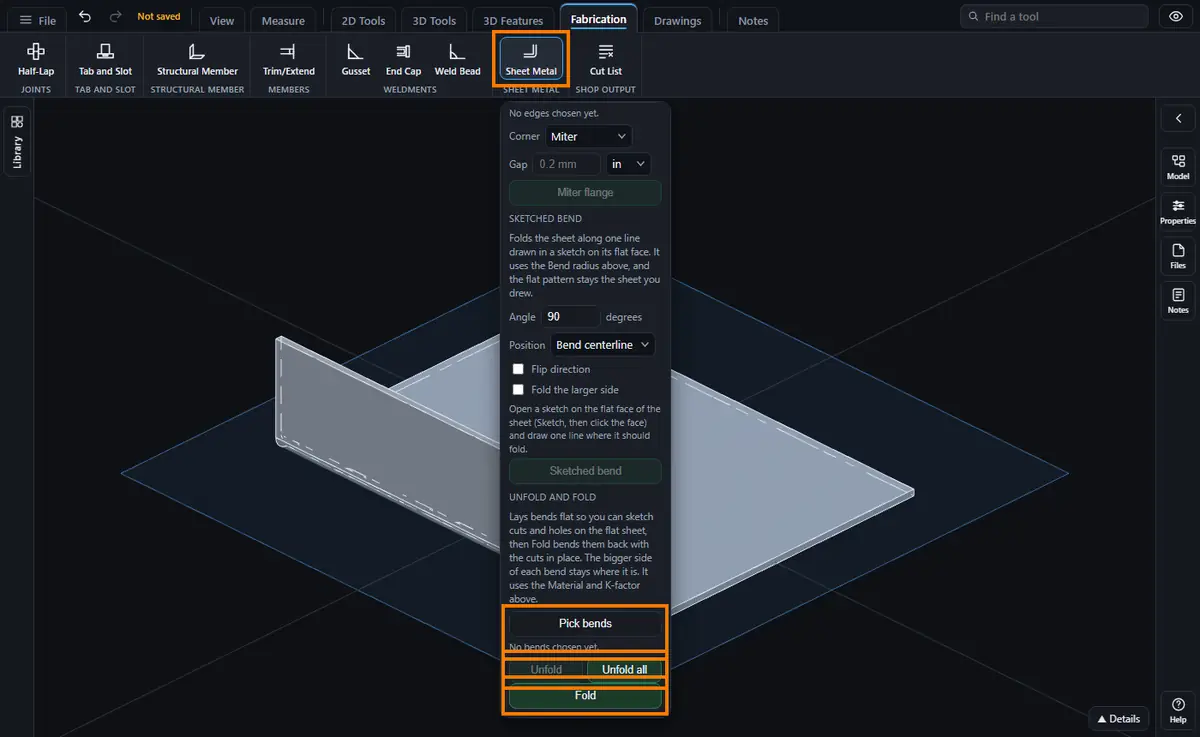
Click Sheet Metal on the Fabrication tab (or find it with Find a tool: unfold, fold, flatten). Modeling must be open. Unfold and Fold is the last part of the Advanced sheet metal box, under Miter flange (open the box first). It uses the Material in the sheet settings at the top of the panel and the K-factor in the box.
Unfold, Step by Step
- Check the Material at the top of the panel and the K-factor in Advanced sheet metal. Leave the K-factor empty to use the bend table for the material, which picks a K by the inside radius over the thickness of each bend. The K used is kept with the step, so editing the bend table later never changes the part.
- Press Pick bends. Every edge of the part is drawn in blue.
- Click an edge of each bend you want laid flat: its curved edge at the side of the sheet, or the line where it meets a flat face. Each one turns green. Click it again to take it off. Press Esc (or the button again) when you are done. Up to 32 bends; two edges of the same bend count once.
- Press Unfold. Or press Unfold all to lay every bend of the part flat without picking any.
- The picked bends are now flat, in one History step named Unfold, and one Undo takes it away.
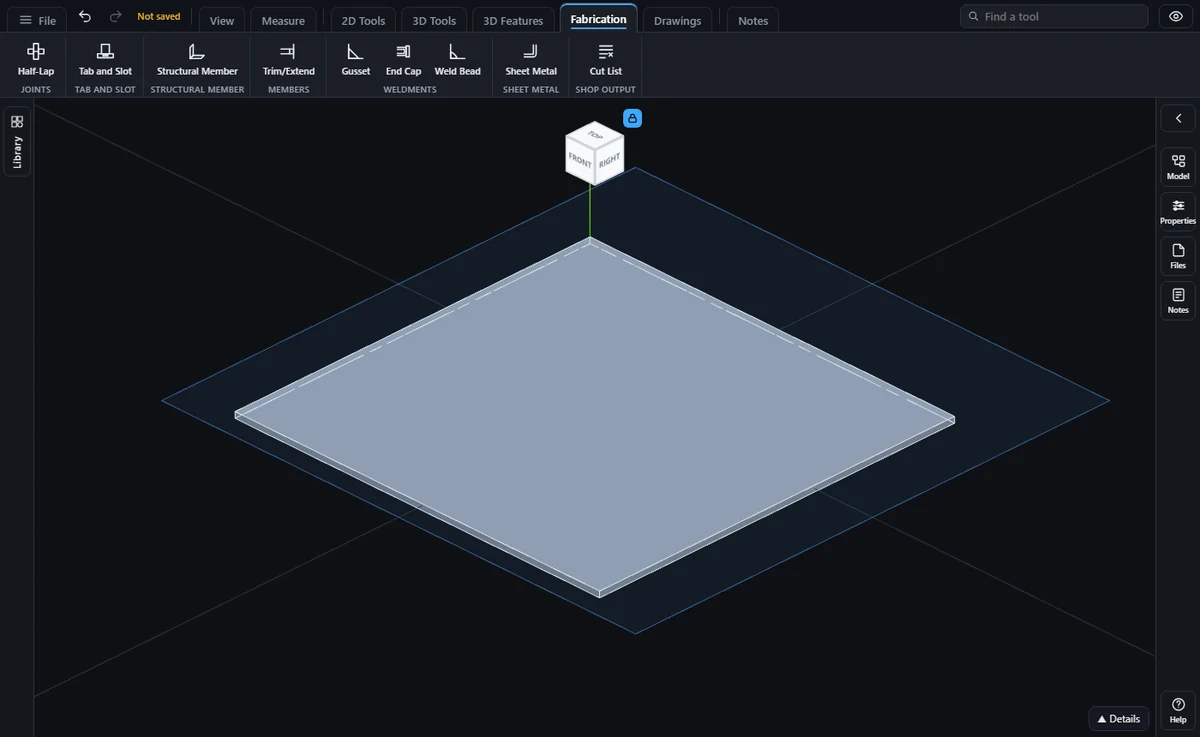
For each bend, the bigger side of the part stays where it is and the other side swings flat. The bend becomes a flat strip as long as its bend allowance: the angle times (inside radius + K x thickness). For example, a 100 x 50 sheet 2 thick with one flange 20 long at 90 degrees, a bend radius of 3, Material inside and K 0.4, unfolds to 95 + 5.97 + 15 = 115.97 long. With Mild steel from the bend table (K 0.43 at this radius) it is 95 + 6.06 + 15 = 116.06 long. A jog or a channel with two bends unfolds both in one step, and a bend on the side that moves moves with it.
Cutting on the Flat
- Start a sketch on the flat face, draw the holes or cut-outs, and use Cut (or Hole) as on any flat part. Keep each cut on the flat faces between the bends, off the flat strip a bend became (from where the bend started to where it ended).
- Add as many steps as you like before you fold.
For example, on the flange above, a hole sketched on the flat 108 from the left end lands on the flange 7.03 past the end of the bend (108 - 95 - 5.97) once it is folded.
Fold, Step by Step
- Press Fold. Every bend laid flat by the Unfold steps above it is bent back as it was, last one first, with the cuts made on the flat moving with the sheet.
- The part is one History step named Fold, and one Undo takes it away.
You can unfold again after a Fold, for more cuts.
The Flat Pattern
- After Unfold all the part is flat, so right-click its flat face and choose Export, Export This Face as DXF: the face is the flat pattern, with every cut made on it.
- After Fold, right-click a flat face and choose Whole flat pattern (unfolded) as usual. The window starts on the K-factor (or the material) the newest Unfold step used, which is the bend allowance your cuts were placed with, so the flat has the holes where you cut them. If you change the K-factor or material in that window, a hole past a bend moves by the change in bend allowance.
- A part with only some bends unfolded lays out flat the same way: the bends still standing are unfolded by the export.
What Is Refused, and What to Do
Each of these says so in plain words and leaves the part as it was:
- No bends picked: press Pick bends and click an edge of each bend, or press Unfold all.
- An edge that is not on a bend: click the curved edge of a bend at the side of the sheet, or the line where it meets a flat face.
- A bend with a mitred corner, a relief or a cut in it (the inside and outside of the bend end in different places, or something is in the bend): Unfold takes bends with square ends. Make a tray or box with Miter flange and Tear relief corners if you want to unfold it.
- A bend whose two sides are joined another way too, as in a closed box or a tube: it cannot be laid flat.
- A side that would run into the rest of the part when it swings flat.
- No material chosen and no K-factor typed, or a K-factor that is not a number from 0 to 1.
- More than 32 bends in one Unfold: unfold the rest in another step, or use Unfold all (up to 32 bends).
- Fold with nothing laid flat above it: unfold some bends first.
- Fold when a cut or hole made on the flat runs across the flat strip of a bend, or something now stands on that strip: it cannot be bent back. Move the cut onto the flat faces between the bends.
- A bend an earlier step moved somewhere else, where Unfold can no longer tell which bend you meant: delete the Unfold and pick the bends again.
- An Unfold or Fold that takes longer than a minute to work out.
Common Mistakes and Messages
- Unfold stays grey. No bend is picked yet. Press Pick bends, then click an edge of each bend, or press Unfold all.
- "That edge is not on a bend of the sheet. Click an edge of a bend: its curved edge at the side of the sheet, or the line where it meets a flat face."
- "An Unfold takes at most 32 bends. Unfold the rest in another step, or press Unfold all."
- "Nothing is laid flat above this step, so there is nothing to fold. Unfold some bends first (Unfold, or Unfold all), add your cuts, then Fold."
Tips
- Make the part with Edge flange, Hem, Jog or Miter flange first; any bend they make can be unfolded.
- Type your own press brake K-factor in the panel before you unfold, so the flat strips are the length your brake really gives.
- When you change an earlier step (a flange length, the sheet thickness), the Unfold and Fold steps rebuild with it. Unfold all always takes every bend there is.
- Edit Feature has nothing to retype on an Unfold or a Fold step. To change the bends or the K-factor, delete the step (or Undo it) and make it again.
Limits for Now
- Fold always bends back every bend laid flat above it; it cannot fold back only some of them.
- The bigger side of each bend is the one that stays; you cannot choose the side that stays yet.
- A cut across the flat strip of a bend cannot be folded back, and bends with mitred ends or reliefs, or bends a cut runs through, are not unfolded.
- A bend must be a plain round bend with square ends; closed shapes such as a box with its corners joined or a tube are not unfolded.
- When several Unfold steps used different K-factors, the flat pattern window starts on the newest one; cuts placed under an older one can be off by the difference.
- A view only share cannot unfold or fold.
Bend Profiles
Before Unfold, choose the press brake in the Bend profile list in Advanced sheet metal. Its K rows are used for the bends; the K used is kept with the step. Fold does not use the profile: it bends back with the K kept by each Unfold step, so changing the profile after Unfold does not change Fold. See Bend Settings and Machine Profiles.