Tangent Arc
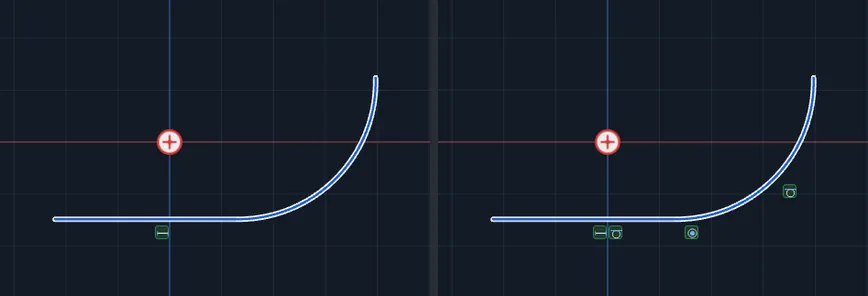
Draws an arc that starts at the end of a line or an arc and leaves it smoothly, with no kink. You click that end, then click where the new arc ends. The tool works out the arc that fits.
When to Use It
- A slot end, a hook or a bent profile where a straight run turns into a curve
- Adding a rounded run onto a line you already drew
- Chaining one arc onto another with no visible join
Step by Step
- Open a sketch on a plane or a face (see Planes and Faces). Sketching is part of modeling, which comes with the Pro plans. Draw the line or arc the new arc will grow from.
- On the Sketch tab, click Line. In the flyout, click Tangent Arc.
- Click the end of the line or arc, close to the end point. If you click anywhere else, a message says A Tangent Arc starts at the end of a line or an arc. Click on one.
- Move the mouse. A preview arc leaves the end in the direction the line or arc was heading, and curves toward the mouse. Click on one side of the line to turn that way.
- Click where the new arc ends. The arc is placed and selected, and a Radius box opens. Carry on: click the end of another line or arc for the next tangent arc, or click Select on the Sketch tab to stop.
Options
- Construction Geometry: tick the box at the bottom of the flyout first and the new arc is drawn dashed, as layout geometry.
Tips and What to Expect
- From the end of a single line, or the end of an arc, the new arc gets a Tangent relation and is joined to that end with Coincident. The pair stays smooth if you move or resize either piece. Drag the free end of the arc and the join stays where it is: the line does not slide or get shorter. See Relations.
- From the end of a chain of lines drawn in one go (a line with more than two points), the arc still leaves in the chain's direction and is joined to it, but no Tangent relation is added. Draw the lines one at a time if you want the relation.
- To change the radius, double-click the arc, type a new size and press Enter. The arc grows or shrinks about the join, so it stays smooth and joined and its far end moves. Pressing Enter without changing the number changes nothing.
- Clicking straight ahead of the line, or straight back along it, shows The arc would run straight on from the line or turn back on itself. Click to one side.
- Esc after the first click cancels. Esc on the Radius box right after drawing removes the new arc. One Undo takes back the arc and its relations together.
- An arc alone does not close a profile for cutting or extruding. Join it to lines so the outline closes.
Related Tools
- Centerpoint Arc
- Straight Slot, which already has tangent ends
- Corner, to round where two lines meet
- Relations