Part Configurations
A configuration is a named state of the part you are modeling, such as Short and Long, or With Holes and Plain. Each configuration remembers two things: which History steps are suppressed, and what the part's Global Variables hold. Press Switch on a configuration and the part is rebuilt that way, as one Ctrl+Z step.
What you get: a list of named configurations in the part, each one a click away with Switch, the one in use marked In use and named beside the part in the Model tree, saved with the part.
When to Use It
- Keep a plain and a drilled version of the same bracket in one part
- Keep a family of sizes in one part, each with its own set of steps
- Show a customer two versions of a part without keeping two files
- Use the rows of a Design Table as configurations, so a row of sizes and a set of suppressed steps go together
Step by Step
- Model the part. Make the global variables the sizes depend on, and use them in the sketch dimensions (see Global Variables).
- Close any open sketch. Open the Model tree: right-click the part's name at the top and pick Configurations..., or click Configurations... under the steps in the History panel. The Configurations window opens.
- Set the part up the first way you want it. For example, leave every step on.
- Type a name such as
Drilledin the box beside Add configuration and click it. The configuration holds the steps suppressed now and the values the variables hold now. - Suppress a step in the Model tree (right-click it, Suppress). Change a variable if you want: open a sketch, use Edit, Global variables..., then close the sketch.
- Type
Plainand click Add configuration again. - Click Switch beside
Drilled. The steps it knows are suppressed or brought back as it says, the variables take its values, and the part is rebuilt. Its button now reads In use, and the part's name in the Model tree shows the configuration in use. - Press Ctrl+Z once to go back to the configuration you were in.
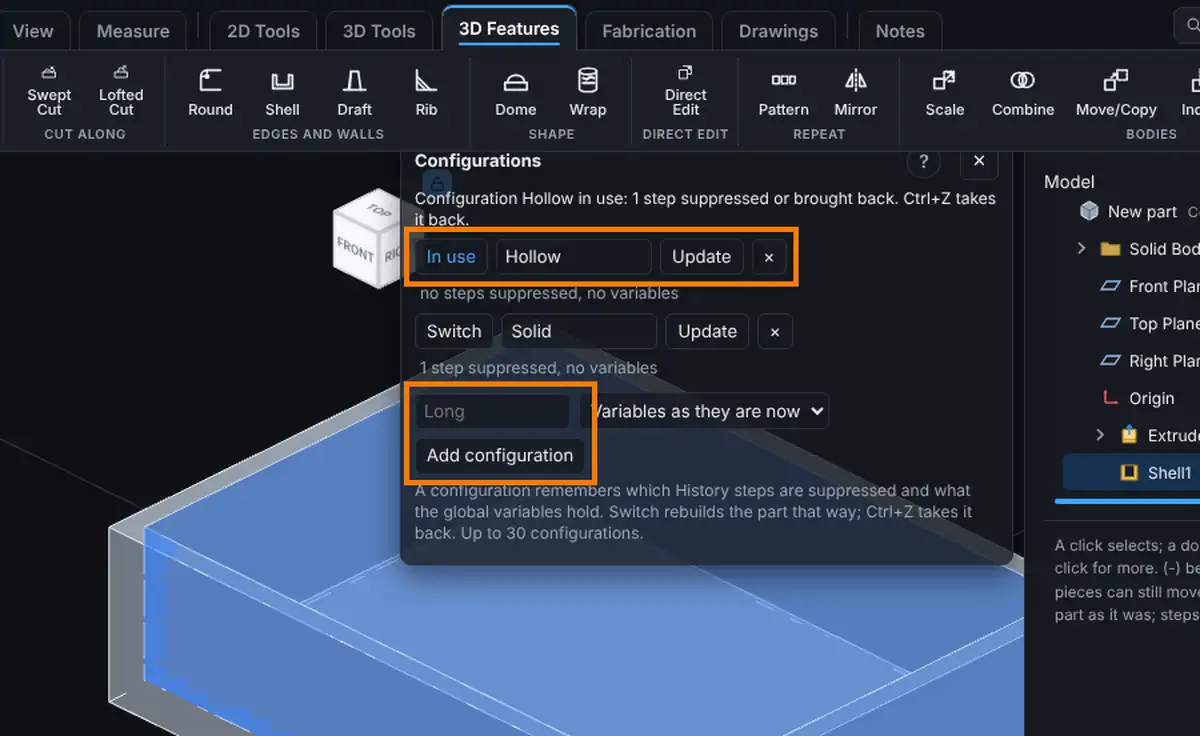
The Window
- Switch: puts the part in this configuration and rebuilds it. The button reads In use when the part already matches it.
- Name: edit it and press Enter to rename the configuration. A name can be up to 40 letters and cannot hold quotes, < or >, tabs or line breaks. Capitals do not matter, so
longandLongare the same name. - Update: saves the part as it is now into this configuration (the steps suppressed now and the variables now). Use it after you change your mind about a step.
- ×: deletes the configuration. The part stays exactly as it is.
- The line under each name says how many steps it suppresses and where its variables come from.
- Add configuration with Variables as they are now: the new configuration keeps a copy of every variable's value or formula.
- Add configuration with Design table row: the new configuration takes its variables from that row of the design table. Change the row later and the configuration follows it. Rename the row and the configuration follows the new name.
Options
- Steps added later: a configuration only changes the steps it knew when it was added or last updated. A step you add afterwards is left as it is when you switch, until you press Update on that configuration.
- Steps it knows by name: a configuration remembers steps by their names in History. Adding or updating a configuration writes each step's name into the step (one quick rebuild the first time), so deleting a step above it no longer renames it. If you rename a step, press Update on the configurations that should know it by its new name.
- Sizes follow: when a switch changes a variable, every Extrude, Cut, Revolve or Rib step whose saved sketch has a dimension formula that reads that variable is made again from its sketch through the sketch solver, before the part is rebuilt.
- Renaming a variable renames it in every configuration too, and deleting a variable takes its value out of every configuration. Ctrl+Z inside the sketch puts both back.
- Names: hidden marks that change the direction of text or take no space are taken out of a name.
When It Is Refused
A refusal says what is wrong in plain words and changes nothing: not the part, not the list, not the undo history.
- A sketch is open: Close the sketch first, since a configuration changes the whole part.
- A step edit is under way, or the rollback bar is not at the bottom: finish the edit or roll to the end first.
- An older version is showing: go back to the current version first.
- A name that will not do: empty, over 40 letters, holding quotes, < or >, or the name of another configuration.
- Too many: a part can have up to 30 configurations.
- Nothing to hold: a part with no History steps and no global variables has nothing a configuration could change.
- Values that do not fit: a variable value the part cannot take, such as a length in a Number variable, or a formula that reads a variable the part no longer has. The message names the variable.
- A sketch that cannot follow: if a new size would make a step's sketch give a length of zero, or the sketch cannot hold together, the switch is refused and the message names the step.
- A step that cannot be built: if the part cannot be rebuilt with that set of steps (for example a step is brought back while the step it is built on stays suppressed), the switch is refused and names the step.
- A design table row that is gone: deleting a row keeps the configurations linked to it, and switching to one is refused naming the row it needs. Add the row back, or delete the configuration and add it again.
- An Undo whose rebuild fails: the part, the variables and the list stay as they are, and the step stays on the Undo list to try again.
What It Does Not Do Yet
- Sweeps and Lofts keep their outlines when a variable changes. Open their sketches to bring them up to date.
- An Extrude depth typed as a formula is worked out once, when you press Extrude or Cut, so a configuration does not change it.
- Materials, colours and hidden bodies are not part of a configuration.
- An assembly cannot pick a configuration of a part yet; it uses the part as it was last saved.
- One part at a time: configurations belong to the part and are not shared between parts.
Common Mistakes and Messages
- "Close the sketch first (Exit Sketch). A configuration changes the whole part, so it is added and switched with no sketch open. Nothing changed." A sketch is open. Click Exit Sketch on the Sketch tab, then press Add configuration or Switch again.
- "The part has no History steps and no global variables yet, so a configuration would hold nothing. Add a step or a variable first." Model at least one step, or make a global variable, before adding a configuration.
- "That name is taken: another configuration is already called Long. Pick another name." Names cannot repeat, and capital letters do not count. Type another name.
- "Type a name for the configuration, like Long." The name box is empty. Type a name before you click Add configuration.
- The window says In use on the wrong row. The part was changed after the switch (a step suppressed or a variable changed by hand). Click Update on the row that should hold the part as it is now.
Tips and What to Expect
- Configurations are saved with the part. Close the model and open it again and they are back; the one that matches the part shows In use.
- Switching changes the part like any other edit, so save a new version to keep the new shape in the file.
- A model saved before this release opens exactly as it was, with no configurations. An older viewer opens the part and ignores them.
- Each add, switch, rename, update and delete is one Undo step, and Redo puts it back.