Sketch Fillet
Rounds a corner in the sketch. Where two lines, a line and an arc, or two arcs meet, the corner is cut back and an arc of the radius you type is put in, touching both pieces smoothly. This works on the 2D sketch, not the solid part (compare Round, on the Features tab, which works on the part's edges).
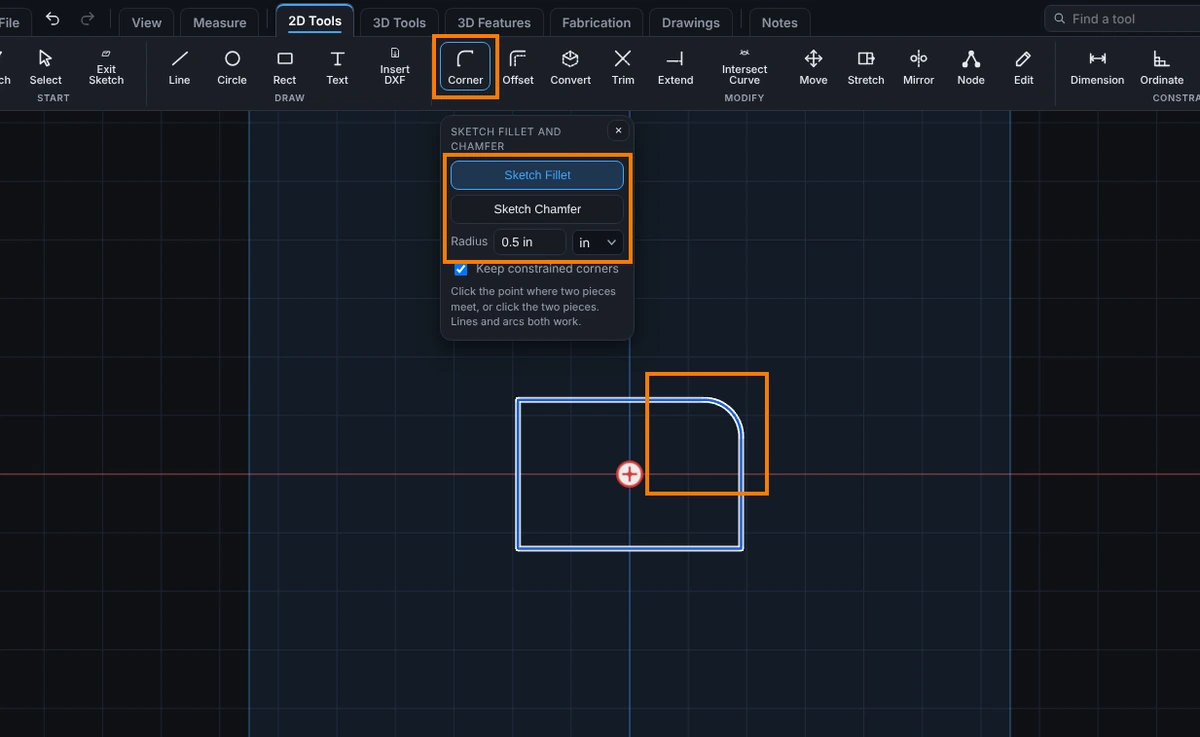
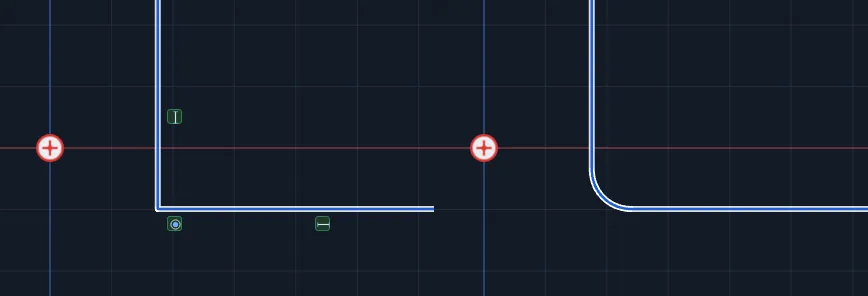
What you get: the sharp corner replaced by an arc of your radius, tangent to both pieces, and the message "Corner rounded, radius 0.5 in. Click another corner, or pick a tool."
When to Use It
- Round the corners of a plate or a bracket outline with a 1/4 in radius
- Soften the corner where a line runs into an arc
- Round between two arcs, such as the inside of a slot end
- Round a corner that has a dimension on it without losing the dimension
Step by Step
- Open a sketch on a plane or a face (see Planes and Faces). Sketching is part of modeling, which comes with the Pro plans.
- Draw the pieces that meet at the corner.
- On the Sketch tab, click Corner. The panel opens on whichever of Sketch Fillet and Sketch Chamfer you used last. If it is not Sketch Fillet, click that.
- Type the Radius, such as
0.25or3/16. Add a unit to override the sketch units. - Click the point where the two pieces meet. Or click the two pieces, one after the other, and the corner is where they would meet.
- The arc goes in and a message says so. Click another corner to keep going, or press Esc to end the tool.
Options
- Radius: the radius of the new arc.
- Keep constrained corners: on by default. When a dimension or relation is tied to the sharp corner, a small point is left where the corner was, so those dimensions still hold. Turn it off and they are let go, and a message counts how many.
- Two sides of one shape, such as the sides of a rectangle, can be picked one after the other. The corner between them is rounded.
- Clicking two pieces that do not touch runs them on to where they would meet first, then rounds the corner. Pieces that cross are cut back to the side you clicked.
Tips and What to Expect
- When nothing else is tied to the corner, the two pieces and the new arc become one connected outline piece. When something is tied to it, the arc stays a piece of its own, tied to both pieces, tangent to each, so nothing is lost.
- A radius too large for the sides is refused and nothing changes. A message says so. Two pieces in a straight line, or more than two meeting at one point, are not a corner to round.
- The arc is a normal arc: change its radius with a dimension, or trim and offset it.
- One Undo takes back the whole fillet, including any new ties.
- Press Help while Sketch Fillet is armed to open this page.
Common Mistakes and Messages
- "Type a radius more than zero." The Radius box is empty, zero or not a number.
- "The radius is too large for these sides, or they are too nearly in line to round." Type a smaller radius, or pick two pieces that meet at a real corner.
- "More than two pieces meet there; the corner is ambiguous. Click the two pieces instead." Click one piece, then the other.
- "That corner cannot hold with the relations already there. Nothing changed." A relation on the corner fights the arc. Turn on Keep constrained corners in the panel, or remove the relation first.