Export This Part as STEP
Saves one part of the model as its own STEP solid.
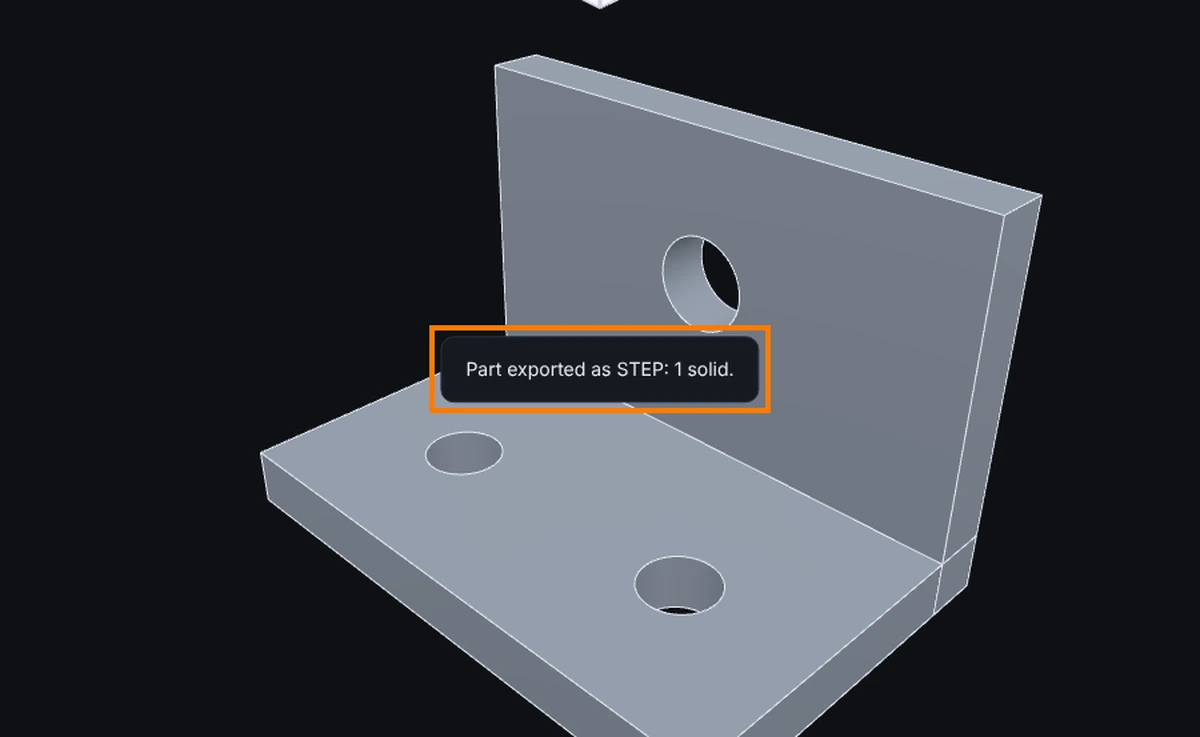
What you get: a .step file named after the model and the part, holding just that part as a solid, and the message Part exported as STEP: 1 solid. in the middle of the view for a few seconds.
Step by Step
- Open the model. It must be a STEP file (or a part you are modeling here).
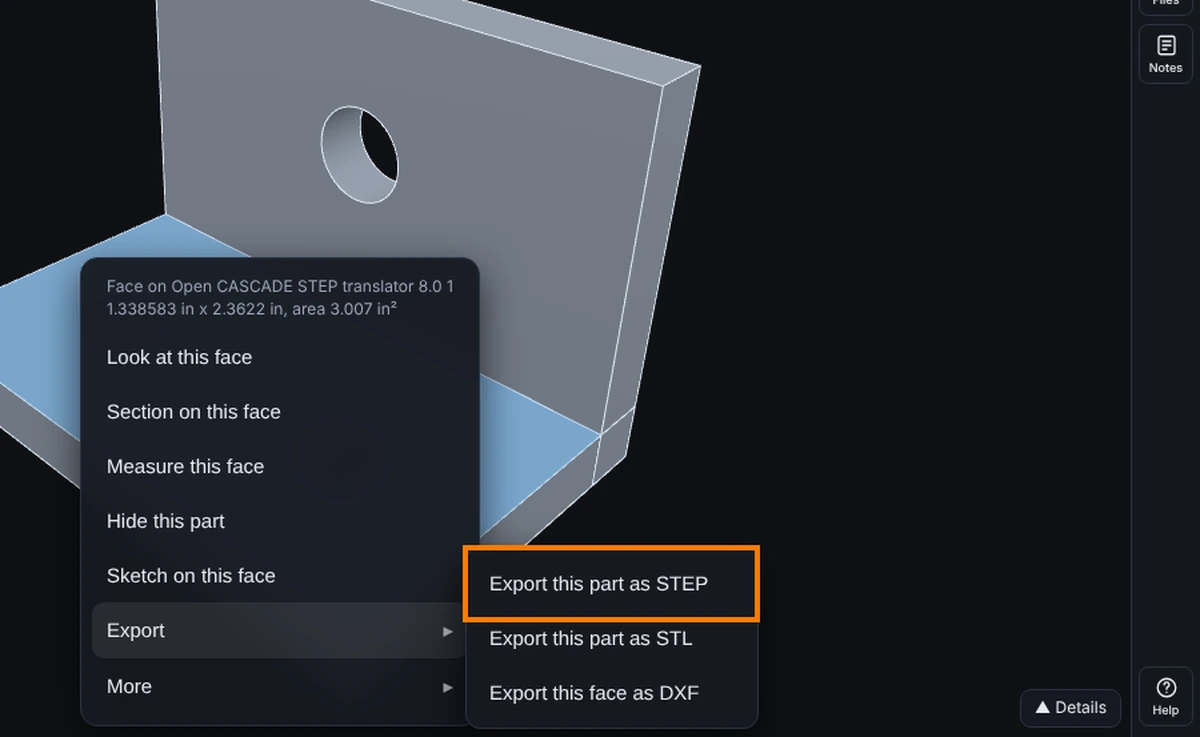
- Right-click the part.
- Point to Export in the menu (or click it), then click Export this part as STEP. In an assembly, the component's own saved model is the part that downloads.
- The file downloads, named after the model and the part, ending in .step. A message says how many solids were written.
Rules and Options
- It works when the model came from a STEP file. Models from mesh formats have no solid to write, and the item is grayed with that reason.
- Materials ride along.
- If you have unsaved modeling edits, the part is written with them, and the message says so.
- While an older version is on screen, switch back to the current version first.
- It needs the Advanced plan or higher, and on a share the Exports box.
- To save a whole assembly, use File, Export, Assembly as STEP; see Assemblies: STEP Assemblies.
Common Mistakes and Messages
- "Export a part as STEP on the Advanced plan or higher." The item reads Export this part as STEP (Advanced) on a lower plan. Upgrade to Advanced to export parts.
- "STEP export works on STEP files; this model came from a mesh format with no solid to write out." You see this on the grayed item when the model is an STL, OBJ, 3MF or glTF file. A mesh has no solid; use Export this part as STL instead.
- "Switch back to the current version first." An older version of the model is on screen. Switch back to the current version, then export.
- "The owner of this model has not allowed exports." The model was shared with you without the Exports box. Ask the sender to share it with Exports (DXF, STEP, STL) ticked.
- The file has my edits in it. That is on purpose: with modeling open and changes not saved yet, the part is written as you see it, and the message ends with your unsaved edits.