Polygon
Draws a regular polygon with 3 to 40 equal sides, sized by a circle. Choose how many sides, whether the corners sit on the circle (inscribed) or the sides touch it (circumscribed), then drag out the circle.
What you get: a closed polygon with equal sides in the sketch, held regular by relations, ready to Extrude or Cut as one profile.
When to Use It
- A hex or square head, a nut or a pocket for one
- Any shape with equal sides and equal angles
- A hexagon sized "across flats" (circumscribed) or "across corners" (inscribed)
Step by Step
- Open a sketch on a plane or a face (see Planes and Faces). Sketching is part of modeling, which comes with the Pro plans.
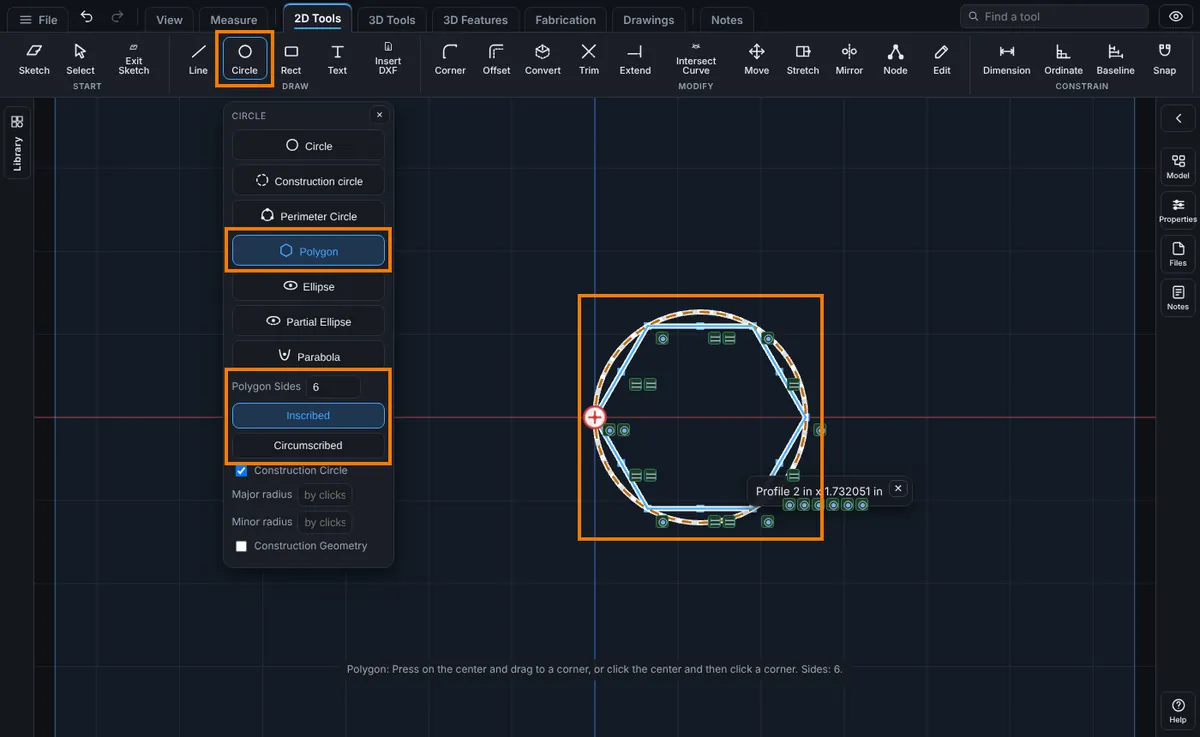
- On the Sketch tab, click Circle. In the flyout, click Polygon. This flyout stays open so your choices are in reach.
- In Polygon Sides, type the number of sides, 3 to 40 (6 is the starting value), and press Enter. A number outside that range shows A polygon has 3 to 40 sides.
- Click Inscribed (the corners sit on the circle) or Circumscribed (the sides touch the circle).
- Leave Construction Circle ticked to see and keep the circle that sizes the polygon, or untick it to draw the polygon alone.
- Press on the center and drag outward, then let go. Or click the center, then click a second point. For Inscribed that point is a corner. For Circumscribed it is the middle of a side. The point also turns the polygon: it sets where the first corner or side lands.
- The polygon is placed and selected, and a message says "Polygon placed." A readout beside it shows its size, such as Profile 2 in x 1.732051 in for a hexagon 2 in across its corners. The tool stays armed for another polygon.
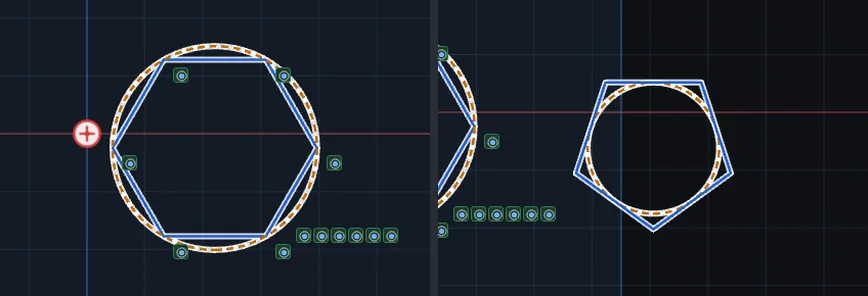
Options
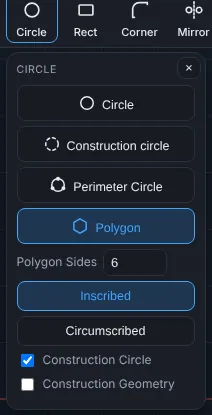
- Polygon Sides: 3 to 40.
- Inscribed and Circumscribed: corners on the circle, or sides touching it. For the same circle, a circumscribed polygon is larger.
- Construction Circle: draws the sizing circle as a dashed construction circle.
- Construction Geometry: draws the polygon itself dashed, as layout geometry.
Tips and What to Expect
- Pressing and releasing in nearly the same place counts as a click, so the polygon waits for your second click.
- With Inscribed and Construction Circle on, each corner is held on the circle with a Point on circle relation. Click Select, double-click the circle, type a new diameter such as
2 in, and press Enter: the polygon follows. With Circumscribed, each side is held Tangent to the circle at its middle instead. With the circle off, one Regular polygon relation keeps the sides equal. Either way the polygon stays regular when you drag a corner: it resizes and turns, and never skews. - A polygon is one closed shape. It is a full profile for Cut or Extrude.
- Esc after the first click cancels the polygon. Esc in the Polygon Sides box cancels the tool. One Undo takes back the polygon, the circle and the relations together.
Common Mistakes and Messages
- "A polygon has 3 to 40 sides." You typed a number of sides outside 3 to 40, such as 2 or 41. Type a number from 3 to 40 and press Enter.
- "Drag away from the center to size the polygon." The second click landed on the center itself. Click a second point away from the center: a corner for Inscribed, the middle of a side for Circumscribed.
- The polygon came out bigger than you wanted. Circumscribed puts the sides on the circle, so the corners stand outside it. For a hexagon sized across its corners, choose Inscribed; across its flats, choose Circumscribed.
- The polygon does not cut. Construction Geometry at the bottom of the flyout was ticked, so it was drawn as a dashed guide. Untick it and draw it again, or select the polygon and untick Construction in Properties.