Cosmetic Thread
Cosmetic Thread draws a thread symbol on a round edge and records its callout, such as 1/4-20 UNC. It does not cut a real helical thread. The solid underneath is unchanged, so its volume and weight stay the same.
What you get: a thread drawn on the round face and its callout, such as 1-8 UNC - 2A, 1.00 in deep, kept as a step in the Model tree and shown in Properties.
When to Use It
- Mark a hole as tapped, with the thread named on the model
- Mark the end of a round shaft or bolt as threaded
- Record the thread class (the tolerance) with the callout
- Make the thread show in the Model tree and in Properties for the people you share the model with
Step by Step
- Click Thread on the Features tab.
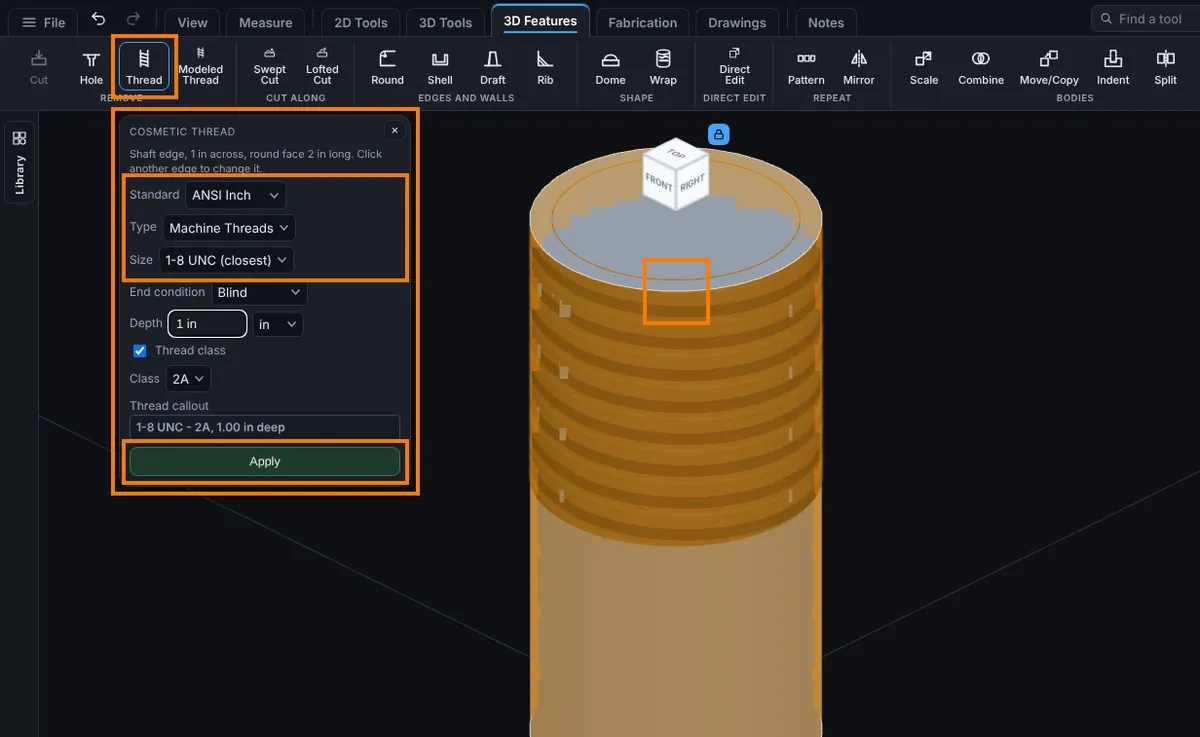
- Click a round edge on the part: the rim of a hole (an internal thread) or the end of a round shaft (an external thread). The panel then names it, for example Shaft edge, 1 in across, round face 2 in long.
- Choose the Standard: ANSI Inch, ANSI Metric or None.
- Choose the Size from the list. It shows the sizes that fit the edge you picked, with the closest one marked (closest). With None, type the Major diameter (for a hole) or Minor diameter (for a shaft) yourself.
- Choose the End condition: Blind, Through or Up To Next. For Blind type the Depth.
- Tick Thread class if you want a tolerance in the callout, and pick the class.
- Read the Thread callout box. It shows the exact text that will be recorded. Click Apply. A message says "Cosmetic thread added: 1-8 UNC - 2A, 1.00 in deep. The solid is unchanged." (with your callout).
Apply stays grey until an edge is picked, and while a Blind depth is empty or 0, or the diameter box is empty with Standard None.
Options
- Standard: ANSI Inch, ANSI Metric or None. With None no size list is shown and you type the diameter.
- Type: Machine Threads.
- Size: the sizes whose tap drill (for a hole) or major diameter (for a shaft) fits the edge. If nothing is close, a note says No inch size matches this diameter closely; the nearest is chosen. Choose None to type your own.
- Major diameter or Minor diameter (Standard None): typed directly. Type any unit to override.
- End condition: Blind is a set Depth from the edge. Through is the whole round face. Up To Next runs to where the round face ends.
- Thread class: an optional callout for the tolerance. Inch offers 2B for a hole and 2A for a shaft. Metric offers 6H for a hole and 6g for a shaft.
- Thread callout: the text that is recorded, in the usual callout format.
Edit It Later
Right-click the step in the Model tree and choose Edit Feature. You can change the standard, size, end condition, depth and class in place. The edge stays. To thread another edge, delete the step and make it again.
Tips and What to Expect
- Rest the pointer on a thread to see its callout beside the pointer. Pick the step in the Model tree to see the callout at the edge and the details in Properties.
- A Tapped hole made with Hole already carries a cosmetic thread. It shows as a row under the hole in the Model tree, so you do not add one again.
- The thread is drawn on the part, not modeled. Weight, volume and exports of the geometry do not include a helix. To cut a real helical thread, use Modeled Thread.
- A hole that is 0.201 in across takes the
1/4-20 UNCthread. That is the usual tap drill for that size.
Common Mistakes and Messages
- The callout box says "Pick an edge first." and Apply is grey. No edge is picked. Click the circular edge itself, not the face beside it: the rim of a hole, or the end of a round shaft.
- Apply is grey with an edge picked. The End condition is Blind and the Depth is empty or 0, or the Standard is None and the diameter box is empty. Type a depth more than 0 (or choose Through or Up To Next), or type the diameter.
- No sizes are listed. Pick an edge first. The list only shows the sizes that fit it.
- The size list has no match for your hole. A note says "No inch size matches this diameter closely; the nearest is chosen. Choose None to type your own." (metric for ANSI Metric). Choose None and type the diameter, or check the hole size.
- The volume did not change. That is right: a cosmetic thread is drawn, not cut. Use Modeled Thread for a real helix.