Exporting Parts, Faces and Files
Save a face, one part, or the whole model as a file you can take to another program: DXF for a flat face, STEP or STL for one part, and STL, IGES, drawings and the original file for the whole model.
What you get: a file in your browser's downloads folder, named after the model (and the part, for a part export), plus a short message in the middle of the view that says what was written.
Step by Step: Export a Face or a Part
- Open the model. Turn the view until you can see the face or part you want.
- Right-click a face of that part. The face turns blue and a menu opens with the face's size at the top.
- Point to Export in the menu, then click Export this face as DXF for the flat face you clicked, Export this part as STEP for the whole part as a solid, or Export this part as STL for the whole part as a mesh.
- The file downloads at once, and a message says what was written (for STEP, like Part exported as STEP: 1 solid.).
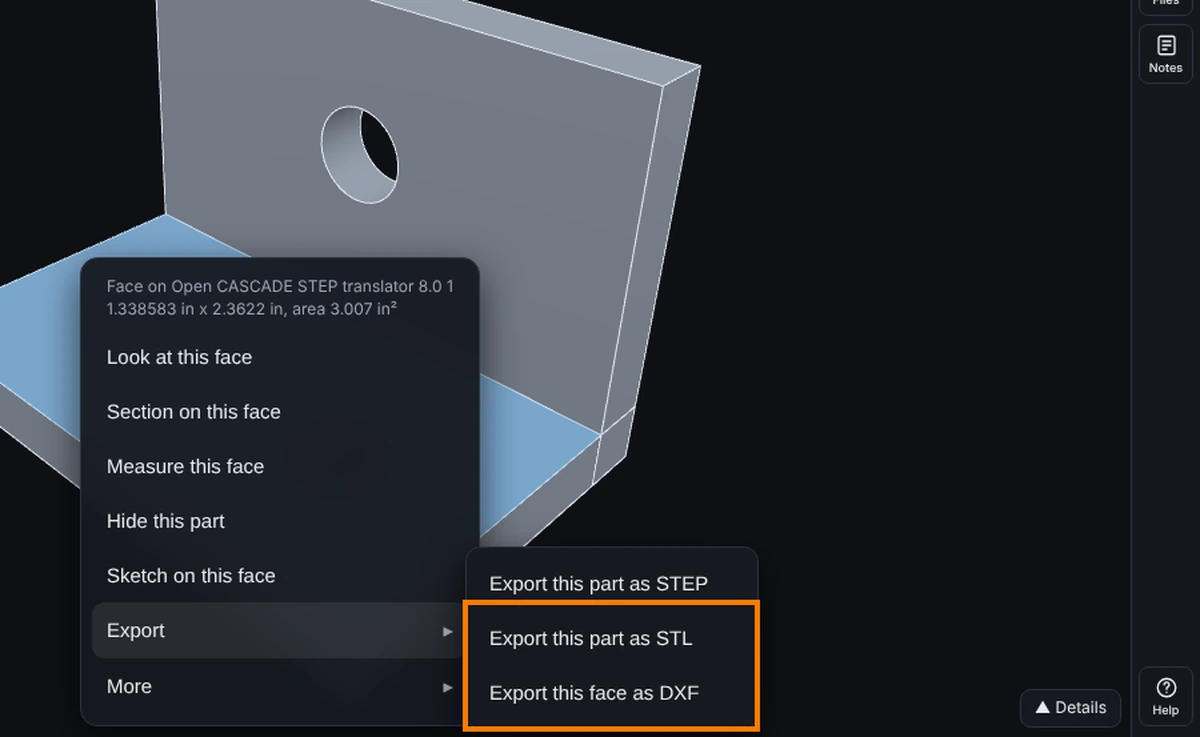
Step by Step: Export the Whole Model
- Click File at the top left.
- Point to Export (or click it) and click the item you need: STEP, STL..., IGES..., Faces as DXF..., Cut files as ZIP... or Drawing as PDF... (it opens Make Drawing; press Save as PDF there). For the file exactly as you opened it, click Download in the File menu itself. For a drawing sheet, you can also click Make Drawing on the Documents tab.
- A window opens for the STL, IGES, drawing and faces exports. Pick the options it shows, then click the window's button: Export in the STL and IGES windows, Download DXF (or Save as PDF) in the drawing window, Download DXF in the faces window, and Download ZIP in the cut files window. The download item saves the file straight away.
Each export has its own page with every option: see One Page for Each Export below.
Right-Click Face Menu
Right-click a face. The menu is short: a few commands at the top and three submenus. A row with a small arrow opens its submenu when you point to it, click it or tap it.
- Look at this face, Section on this face and Measure this face, at the top.
- Hide this part and Isolate this part (Isolate shows when the model has more than one part), at the top.
- Sketch on this face (Pro), at the top (in an assembly, under More).
- Export, a submenu with the exports below. In an assembly, Export this part as STEP saves the component's own model.
- Export this face as DXF, under Export.
- Export this part as STEP, under Export.
- Export this part as STL, under Export.
- Export flat pattern as DXF, under Export, on bent sheet metal only.
- More, a submenu: Copy face info, Add a note here, Show all parts (when something is hidden) and Help on Right-Click Menus.
- In an assembly, Assembly tools, a submenu with the component's own commands (Mate, patterns, Move and the rest).
Isolating a part and the exports need the Advanced plan or higher. On a lower plan the menu item says so.
Faces as DXF
DXF works on flat faces only. Units are inches when your display is imperial, otherwise millimeters.
Parts as STEP or STL
Export this part as STEP works when the model came from a STEP file. Export this part as STL saves the part in the model's own units.
Whole Files
- File, Download <EXT> file saves the original.
- File, Export, STEP saves the part as STEP: with your edits when you have made any, otherwise the original STEP file. It needs a model that came from a STEP file, or one with edits.
- File, Export, Drawing as PDF... opens Make Drawing; press Save as PDF in that window. It needs Advanced or higher.
- File, Export, Assembly as STEP saves an assembly. It shows only while an assembly is open and needs Advanced or higher.
- File, Export, STL... saves the whole model, or the bodies you tick, as one STL file (binary or ASCII, millimeters or inches). It works for an open assembly too and needs Advanced or higher; see Export This Part as STL.
- File, Export, IGES... saves the whole part as one IGES file with exact surfaces (millimeters or inches). It works on a STEP part or a part drawn here, one part at a time, and needs Advanced or higher; see Export as IGES.
- Make Drawing on the Documents tab (or File, New, Drawing of This Part...) puts the front, top and right views on a drawing sheet with a title block and saves it as DXF. It needs Advanced or higher; see Make Drawing.
- File, Export, Faces as DXF... saves several flat faces in one DXF, each on its own layer, with a gap between them, in one row or in rows. It needs Advanced or higher; see Export Faces as DXF.
- File, Export, Cut files as ZIP... makes one DXF for every flat part of the model or assembly, with the name, quantity, material and thickness in the file name, and a manifest.csv, all in one ZIP. It needs Advanced or higher; see Export Cut Files.
On Shared Models
A visitor can export only when the sender's plan allows it and the share has the Exports (DXF, STEP, STL) box ticked. Otherwise they see "The owner of this model has not allowed exports."
Common Mistakes and Messages
- "Export a face as DXF on the Advanced plan or higher." The exports and Isolate are marked (Advanced) in the menu on a lower plan. Upgrade, or ask someone on Advanced to export it for you.
- "This face is not flat, so it cannot become a 2D profile." You see this when you rest the pointer on a grayed Export this face as DXF: you right-clicked a round or curved face. Right-click a flat face for a DXF, or export the part as STEP instead.
- "The owner of this model has not allowed exports." You are looking at a model someone shared with you, and they left the Exports (DXF, STEP, STL) box unticked. Ask them to share it again with that box ticked.
- Nothing seems to happen. Look in your browser's downloads list: the file saves without asking where. Some browsers ask once to allow several downloads from one page; allow it.
- The menu is the browser's own menu. You right-clicked outside the model. Right-click on the part itself.