Arc Slot
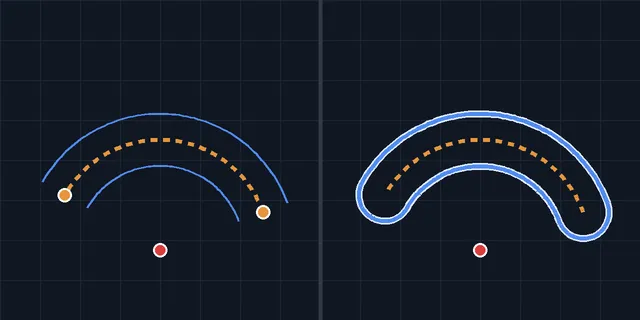
Draws a slot that follows an arc: a curved outer side and a curved inner side, joined by a half circle at each end. You click the center of the arc, where the slot starts, where it ends, then set the width. Arc slots are common for a part that swings on a pivot and is clamped at any angle.
When to Use It
- A curved adjustment slot for a hinge, a tilting bracket or a fence that swings
- A slot that keeps a bolt at the same distance from a pivot
- Any curved, round ended profile for Cut or Extrude
Step by Step
- Open a sketch on a plane or a face (see Planes and Faces). Sketching is part of modeling, which comes with the Pro plans.
- On the Sketch tab, click Rect. In the flyout, click Arc Slot.
- Click the center of the arc the slot follows. This is the pivot. If it snaps onto a point already in the sketch, such as the center of a hole, the slot's center is tied to it with Coincident, as Straight Slot does.
- Click where the slot starts. The distance from the center sets the radius of the slot's center line. A dashed line shows the radius while you move.
- Move around the center. A dashed arc follows the mouse, counter-clockwise or clockwise, the way you move. Click where the slot ends.
- Move the mouse in or out from the dashed arc. A preview shows the whole slot. Click to set the width. The distance from the center line to your click is the radius of the round ends, so the slot is twice that wide.
- The slot is placed and a message says Arc Slot placed: a closed outline of 4 arcs. Cut or Extrude uses it as one profile.
Options
- Construction Geometry: tick the box at the bottom of the Rect flyout first and the slot is drawn as dashed construction geometry, which never cuts. The message then says only Arc Slot placed.
Tips and What to Expect
- The slot is five pieces: the outer side, the inner side, a round end at each end, and the center line as a dashed construction arc.
- The pieces are tied the way Straight Slot ties its pieces, so the slot stays a true slot when you drag it or give it sizes. The two sides are Concentric with the center line, the round end at the start is centered on the center line's start, every end is joined with Coincident, and each round end runs smoothly into the sides with Tangent. See Relations.
- The round end at the far end is not tied to the center line's end with a Coincident. Its distance from the center already follows from the sides and the other round end, so that tie would be one more than the slot needs. Instead the center line's end is kept in line with that round end by a Tangent between the two arcs at their ends, so it stays on the center of the round end all the same.
- A slot on its own can still move, turn, grow and swing (the center, the radius, where it starts, where it ends and the width). To fix all of them, use Smart Dimension: a Radius on the center line, a Radius on a round end for the width (half of it), an Arc angle on the center line for the sweep, and hold the center where it is. See Dimensions and Units.
- Esc after any of the first three clicks cancels the slot. One Undo takes back all five pieces and their relations together.
Common Problems
- Move around the center first: the slot needs some sweep. The end click was on the start. Move round the center before you click.
- A slot cannot go all the way round. The end is back on the start or past it. Click the end short of the start.
- The slot is as wide as its radius or wider, so the inner side would vanish. The width click is too far from the center line. Click nearer it, or start further from the center.
- The round ends would run into each other. The slot goes so far round that its round ends meet behind the center. Make it narrower or its sweep shorter.
- Click away from the center line to set the width. The width click was on the dashed center line, which makes a slot of no width. Click to one side of it.
- A width click that is refused keeps the first three clicks: the message says the slot is kept, so just click again to set the width, or press Esc to cancel.
- The start is on the center. Click the start away from the center so the slot has a radius.
Related Tools
- Straight Slot
- Centerpoint Arc
- Node, which splits an arc or a circle in two
- Relations