Extend
Click near the end of a line or an arc and that end runs on, along the same line or the same circle, to the first piece it meets. Use it to close a gap or bring a short line up to a wall.
When to Use It
- Close a small gap between a line and the piece it should meet
- Bring a line up to a boundary without typing a length
- Lengthen an arc along its own circle until it reaches another piece
Step by Step
- Open a sketch on a plane or a face (see Planes and Faces). Sketching is part of modeling, which comes with the Pro plans.
- On the Sketch tab, click Advanced, then Extend.
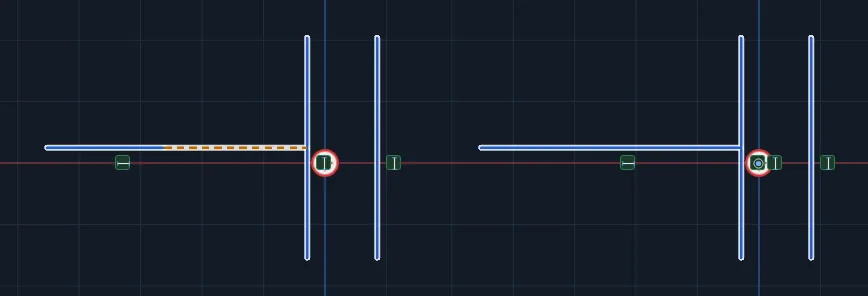
- Move the mouse near the end of a line or an arc. A dashed preview shows how far that end would run.
- Click. The end runs on to the first piece it meets and is tied to it.
- Click another end, or press Esc to end the tool.
Options
- Which end is the one nearest your click. A line has two ends and an open polyline has its first and last.
- Lines and arcs both extend. A line keeps its direction. An arc stays on its own circle and keeps its radius.
- The first piece ahead is the target, even when others lie beyond it. Lines, arcs and circles all count, and so do construction pieces.
Tips and What to Expect
- The new end is tied to the piece it meets, so it stays on it as the sketch changes. See Relations.
- If nothing lies ahead of that end, nothing happens and a message says Nothing to extend there. Click near the free end of a line or an arc that has another piece in front of it.
- A circle, a closed shape such as a rectangle, and a combined outline have no free end to extend. Trim one with Power Trim or Trim to Closest if you need it shorter.
- An end that is joined to another piece, or held in place, is not run on, since the joint would be lost. A message says so: extend a free end, or delete the relation first.
- One Undo takes back the extension and its tie together.
- Press Help while Extend is armed to open this page.